Let’s dive in to learn how to make octopus pixel art! This beginner-friendly tutorial will walk you through the process step by step so you can create your own underwater creature with ease!


Pixel art is the perfect way to capture the charm of an octopus, and this guide makes it simple. Whether you’re creating a sprite for an under water video game, building an ocean-themed art collection, designing a digital sticker, or just looking for something fun to share on social media, this tutorial has you covered. By the end, you’ll have a playful pixel octopus ready to show off..
How to Make a Pixel Art Octopus
These are the basic steps for how to make a pixel art octopus:
- Select a Pixel Art Software such as Adobe Photoshop, Mega Voxels or Aseprite
- Create a 32×32 pixel grid for your octopus
- Sketch out an Outline for the shape of the octopus
- Fill in the color of the pixel art octopus
- Draw a Shade on the octopus to create depth
- Fill in the Background with Color
Now that you are familiar with the basic steps on how to create a pixel art octopus, we will cover each step visually so that you can follow along on how to create it.
If you are completely new to pixel art we recommend reading our post How to Create Pixel Art: Beginner’s Tutorial
Select a Pixel Art Software
In this beginner tutorial we will be showing you the steps to design your own pixel art octopus regardless of what pixel editor software you prefer to use. Before we begin you will need to know how to create a grid and use the pencil tool in the software of your choice. Once you create your pixel art octopus, you can use the pixel art in other games such as Minecraft or software such as Unity Game Engine. We offer tutorials on the following pixel art editor’s so feel free to pick the one that you feel most comfortable with:
Want to see what pixel art software is best for you? Read our post Top Free Pixel Art Software
Create a Grid
To begin we will be using a simple 32×32 pixel grid to draw a small pixel art octopus. Making 32×32 pixel art is a common size when making pixel art, especially for projects like video games. Be sure that your canvas is set to the color White (#FFFFFF). This will be our canvas that we use to draw our pixel art octopus on. Your octopus pixel art grid should have a canvas, also known as a spreadsheet, that looks something similar to this:

Sketch an Outline for the Octopus
Next we will start by making the outline for the octopus so we can get the overall shape for our pixel octopus. To do this choose the color Black (#000000) and activate the pencil tool in your editor. Since this determines the overall shape, feel free to adjust the outline to what match your game or art project. As a guide, you can use the outline we made below for your octopus or like we mentioned before feel free to design your own.

Fill in the Color
Now that you made an outline for your pixel art octopus, we will add some color to make it stand out. Fill in the main section of the octopus the color (#4D50B9). You can use the eyedropper tool to get the remaining colors. Try matching the picture of our 8 bit pixel art octopus below.

Draw the Shading
So whenever you create pixel art there are essentially two parts to shading: the highlights and the shadows. We will start with the shadows. We will be applying a shadow to our 32×32 pixel art octopus using a single color. This color will be generally be applied to the bottom of the octopus. Remember, to create a shadow color for the octopus we will use a darker version of the color we used before (#3E41A8). To create more shades you can simply color pick the main color and darken it. Try to match where we put the shadows in the image below.

So now that you got the basic idea we will continue adding some depth to our octopus to give it a 3D feel. Let’s create a highlight using the same color from the main octopus section, but instead of going darker this time we will go lighter (#595CCF). Remember, this doesn’t have to be the exact color in fact this is an opportunity to make the octopus look like your own. Use our image as a guide for your octopus.

Great! When you are happy with your shadows and highlights on your octopus, be sure to view your final image. To see your pixel art octopus go ahead and turn off the grid lines to make sure you like the way the octopus came out.
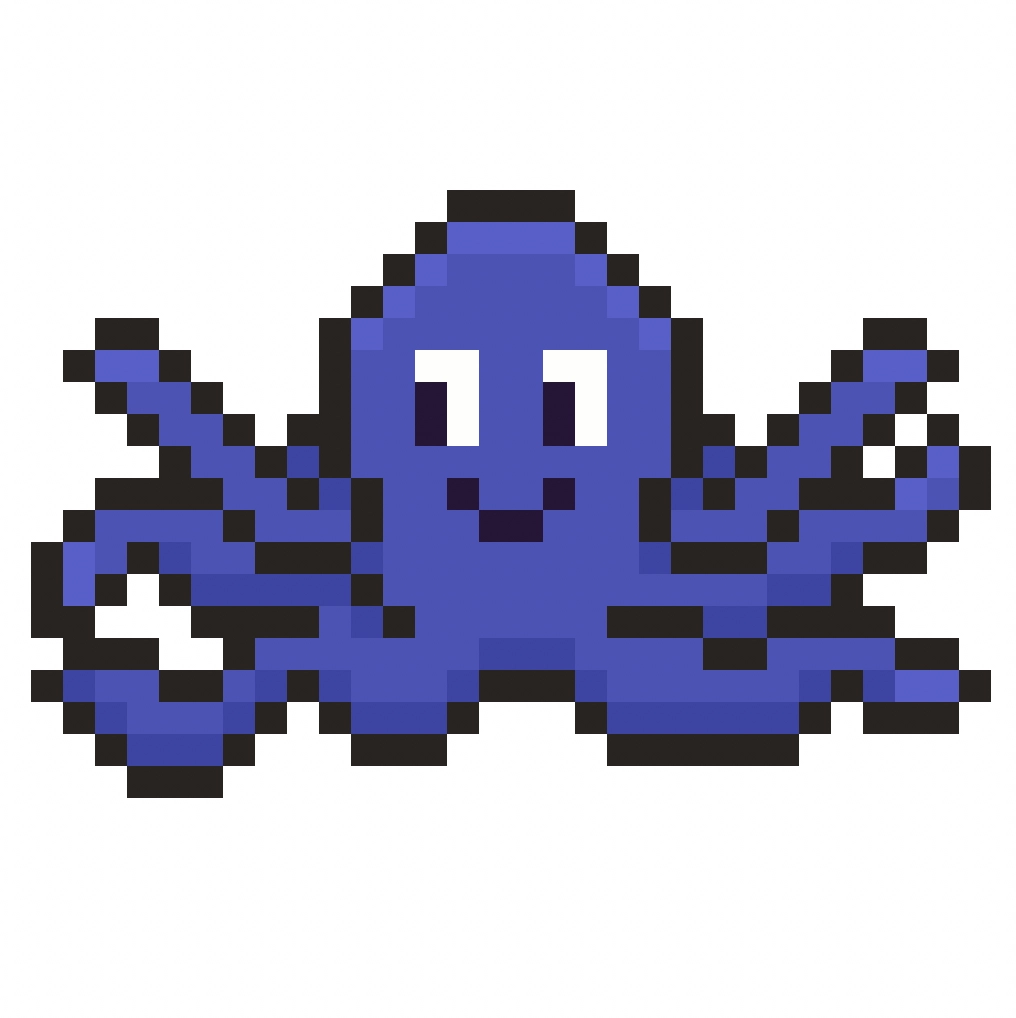
Fill the Background Color
Finally, let’s change the background color of our octopus sprite to really make our octopus stand out nicely. Select the Bucket fill tool in your editor. For the color enter a very Light Blue (#BCEAFE). Then simply click on the white area outside of the pixel octopus.

Where to Go From Here
Congratulations! You now know how to create your very own pixel art octopus. You can create different versions of your pixel octopus by changing the colors or modifying the size.
Bonus: Make a 3D Pixel Art Octopus

Now that you have drawn your own pixel art octopus, you can turn it 3D with Mega Voxels. Mega Voxels contains a 3D Pixel Art Maker that allows you to convert traditional 2D pixels into 3D pixels. Simply download the free Mega Voxels app for iOS or Android.


Then import the pixel art you just made using the Add File button inside of the My Gallery page. And that’s it! Mega Voxels automatically transforms you pixel art octopus into a 3D pixel art octopus. You can now create 3D turntable videos of your 3D pixel art octopus and even view your octopus in Augmented Reality!