Want to learn how to draw pizza in pixel art? In this guide, we’ll take you step by step through the process of building a digital slice that looks good enough to eat.
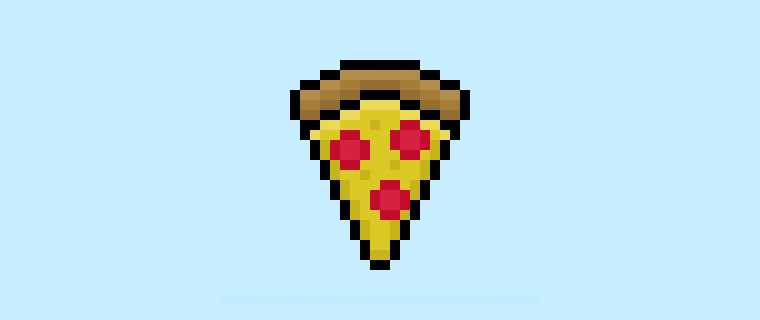

Pixel art is a simple but creative way to turn everyday items into retro-style graphics, and pizza is a great choice to start with. You might use it for a cooking-themed video game, a fun social media post, or just to practice your art skills. Follow along, and by the end you’ll have your very own pixel pizza ready to share.
How to Make a Pixel Art Pizza
Here’s a quick overview of the steps for designing a pixel art pizza:
- Open a Pixel Art program such as Photoshop, Mega Voxels, or Aseprite
- Set up a 32×32 pixel grid
- Draw the outline of the pizza slice
- Add the main colors of the pizza
- Apply shading and highlights for depth
- Fill in the background with a color of your choice
Next, we’ll go step by step with visuals so you can follow along and build your own slice of pixel pizza.
Select a Pixel Art Software
For this project you can use any pixel editor you like. All you need is the ability to make a grid and draw with the pencil tool. Once finished, you’ll be able to export your pizza sprite for use in other software, like Minecraft or Unity. We also provide tutorials for several popular editors—pick the one you’re most comfortable with and let’s get started.
Create a Grid
Start by setting up a 32×32 pixel grid. This size is popular for small game sprites and makes it easy to follow along. Make sure your canvas background is white (#FFFFFF). This blank grid will be the base where we draw our pizza design.

Sketch an Outline for the Pizza
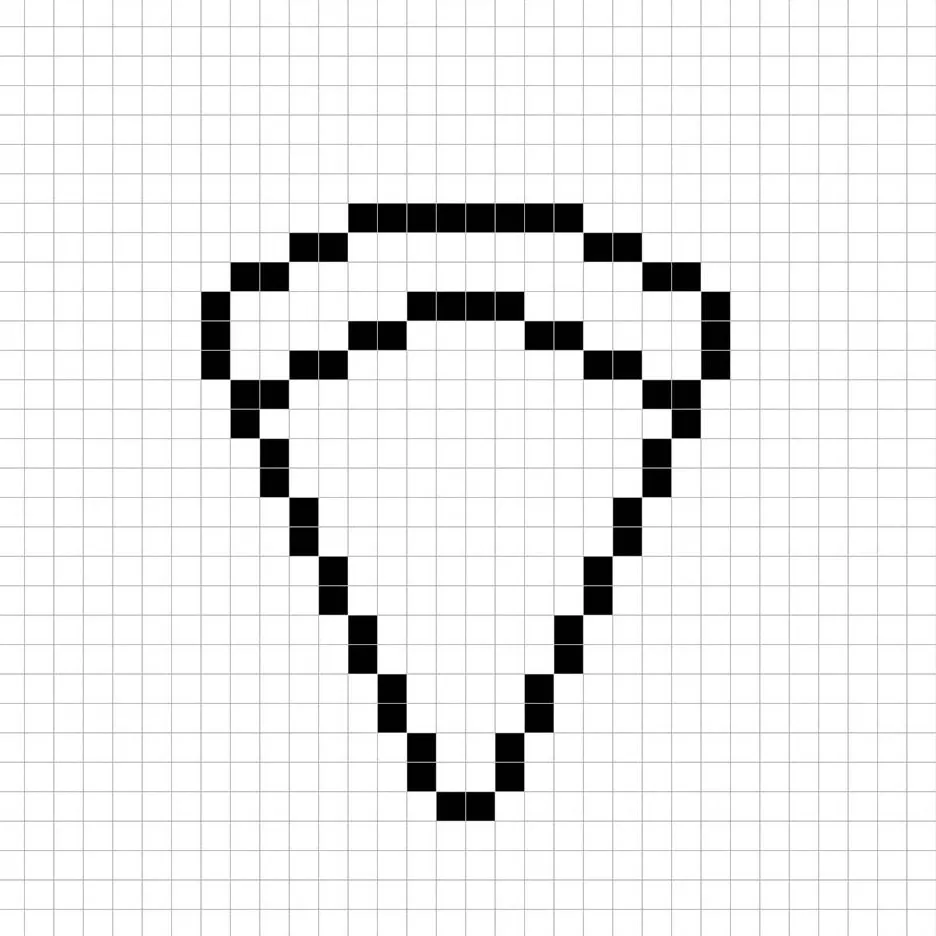
Next, let’s draw the outline of the slice. Choose black (#000000) and use the pencil tool to sketch the triangular pizza shape with a crust at the top. Feel free to adjust the proportions if you want a thinner or thicker slice—this is your design! Below is the outline we used as an example.
Fill in the Color
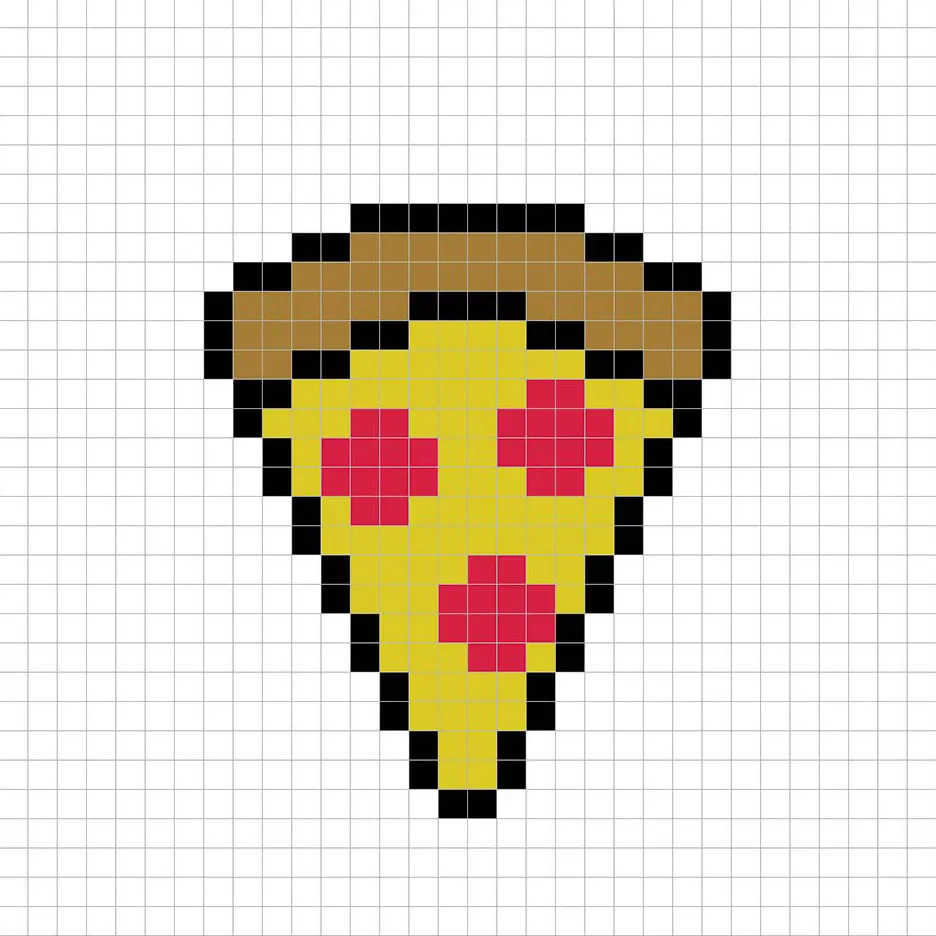
With the outline ready, it’s time to add color. Use yellow (#D6C037) for the cheesy part of the slice, brown (#9A7136) for the crust, and red (#CE1D3B) for three pepperoni circles. This gives the design a classic pizza look. Use our example image as a guide while you fill it in.
Draw the Shading
To make the pizza less flat, we’ll add shadows and highlights. For shadows, use a darker yellow (#BEAA2E) under the cheese and a darker brown (#866330) under the crust. For highlights, pick lighter shades (#E7D359 for cheese, #A98147 for crust) to give the slice a subtle 3D look. Don’t worry about making it exact—customizing the shading is a great way to make the art your own.
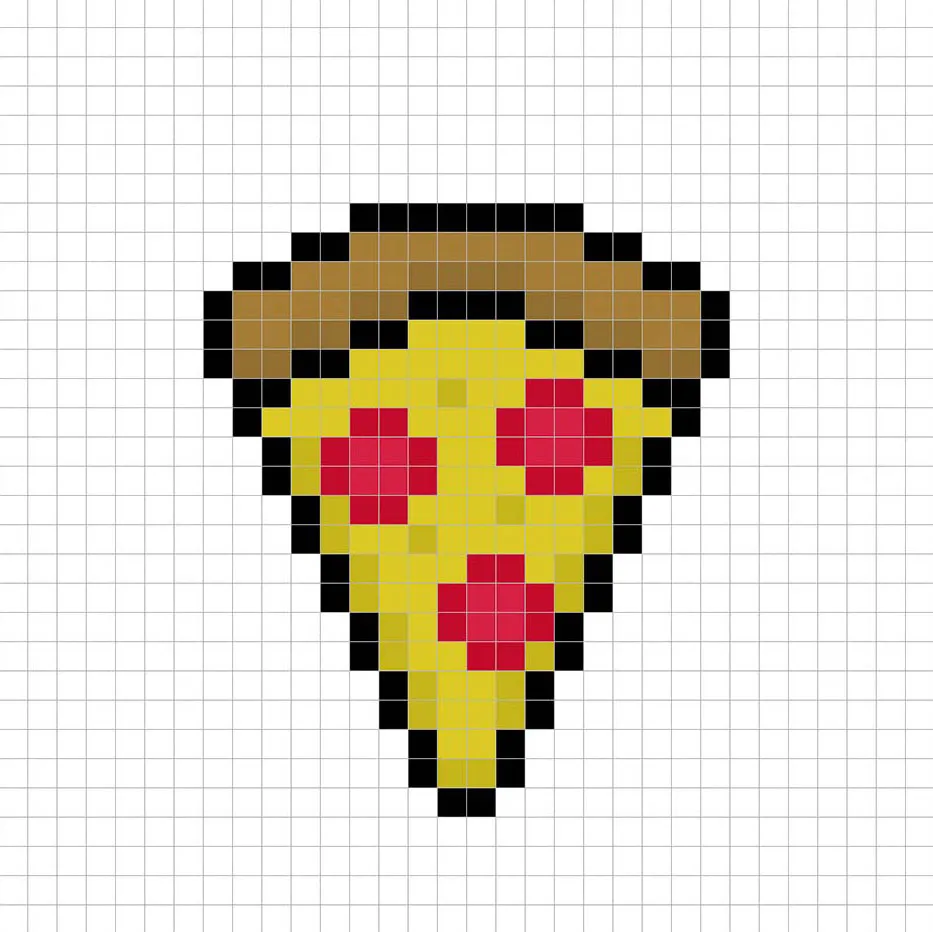
When you’re happy with the shadows, add lighter highlights to brighten the slice. Compare your version with the example below, then adjust until you like the result.
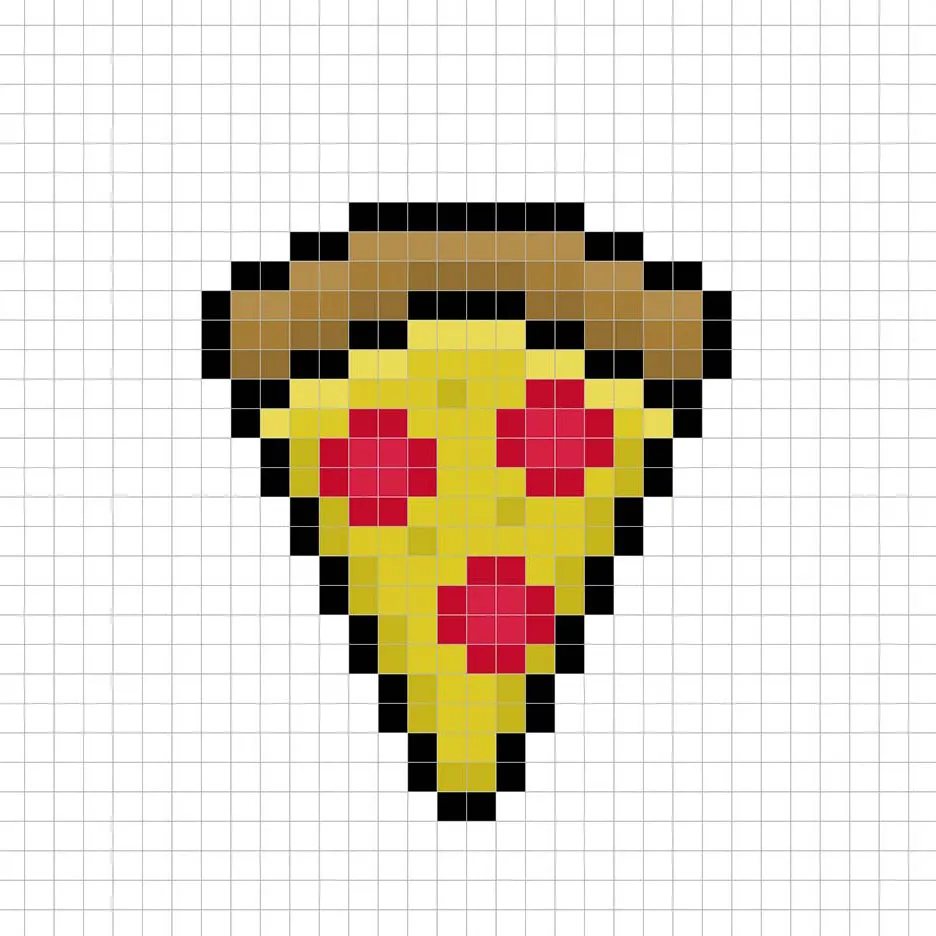
Once your shading and highlights are finished, zoom out and turn off the grid lines. You should see a complete slice of pixel art pizza that feels polished and ready.
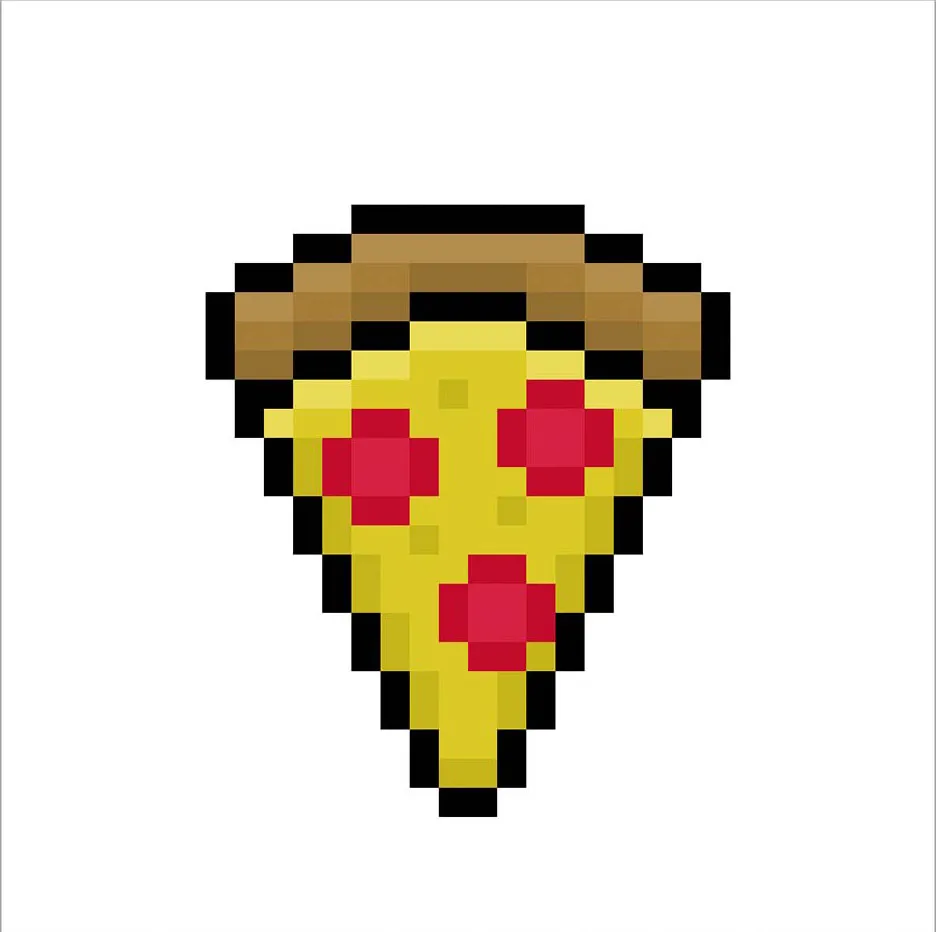
Fill the Background Color
For the final touch, let’s add a background color to make the slice pop. Select the bucket fill tool, choose a light blue shade (#BCEAFE), and click the area outside of the pizza. This adds contrast and makes your sprite stand out even more.
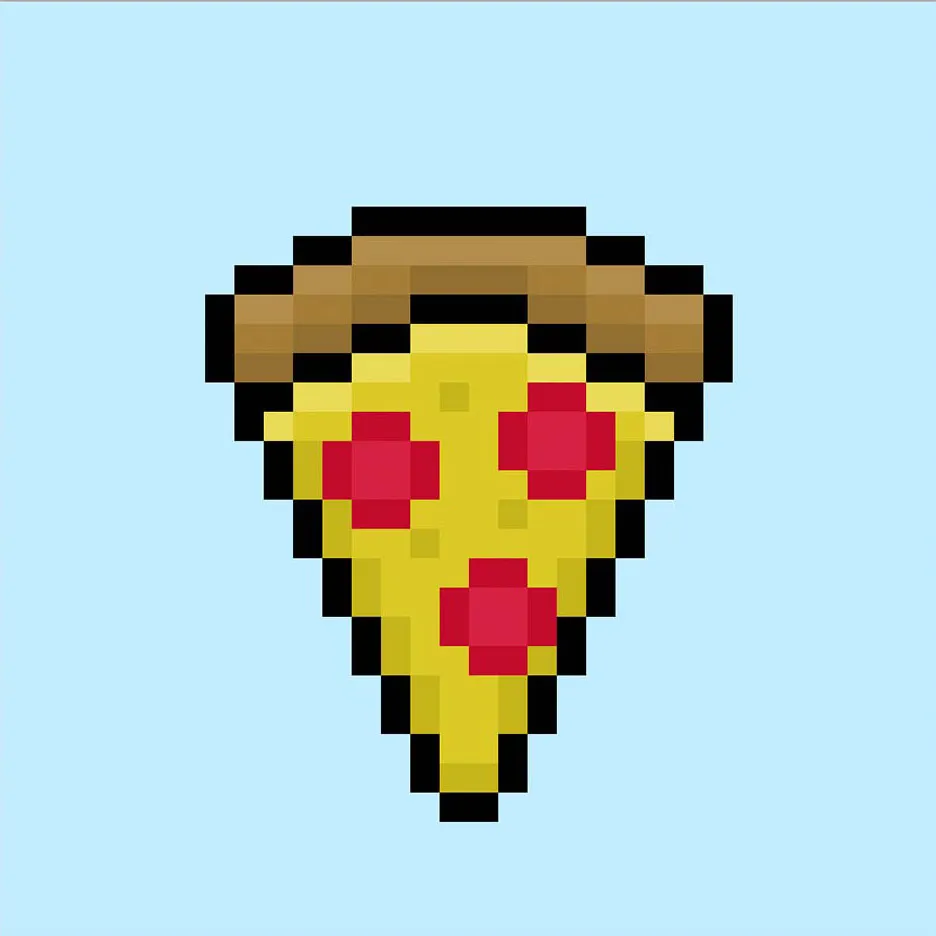
Where to Go From Here
Congrats! You’ve completed your own pixel art pizza. Try experimenting with different toppings—like mushrooms, veggies, or extra cheese—to make a variety of slices and build your own pixel dinner scene.
Prefer video? Watch our step-by-step tutorial on YouTube: