Hello everyone! In this post I will be showing you how to install MagicaVoxel for macOS and Windows computers. MagicaVoxel is an extremely popular piece of software created by @ephtracy for creating voxel art! What makes it more amazing is that its absolutely free!
Getting Started
First you will need to download MagicaVoxel to your machine. Head on over to the official site for MagicaVoxel. Once there you’ll see this at the top of the page:
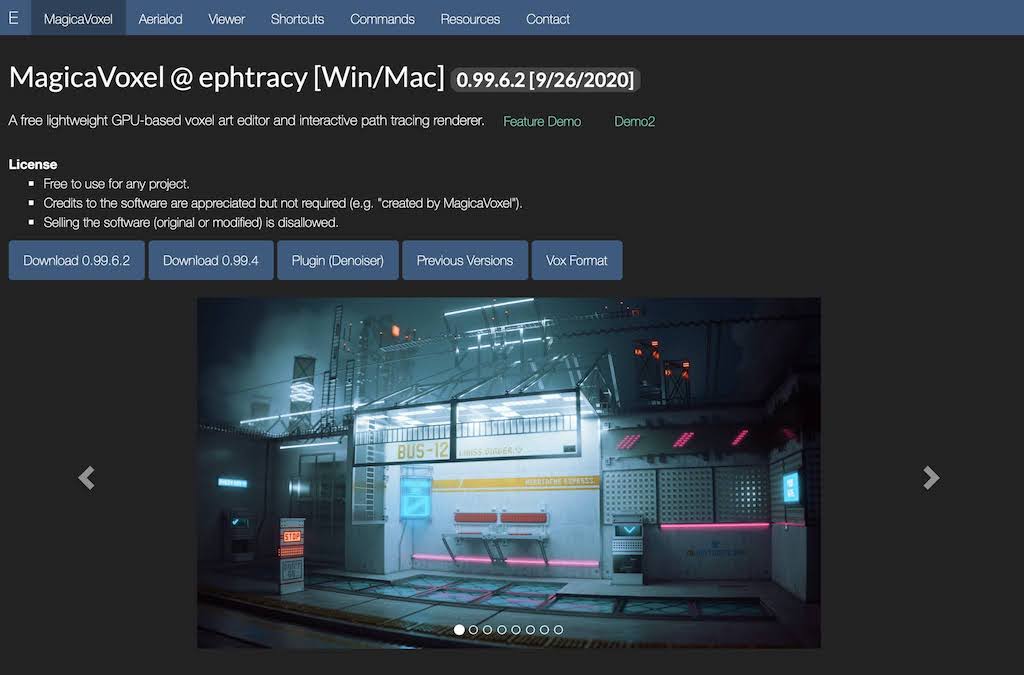
As of this writing, all downloads for the software are on the official GitHub page for MagicaVoxel. Currently the most up-to-date version is 0.99.7 and its only available for Windows but if you go back to 0.99.6 or 0.99.4 you’ll find versions for macOS and Windows. If you want access to the latest improvements and features click the the button that says Download 0.99.6.2. Keep in mind there might still be some bugs as this version was recently released. If you prefer a more stable and tested version of MagicaVoxel, choose the button that says Download 0.99.4. This version has been around a lot longer and has been tested in the field more, however it lacks some of the newer features such as a larger supported canvas size for your models. Once you click one of the links you’ll be taken to a GitHub page with all the downloads.
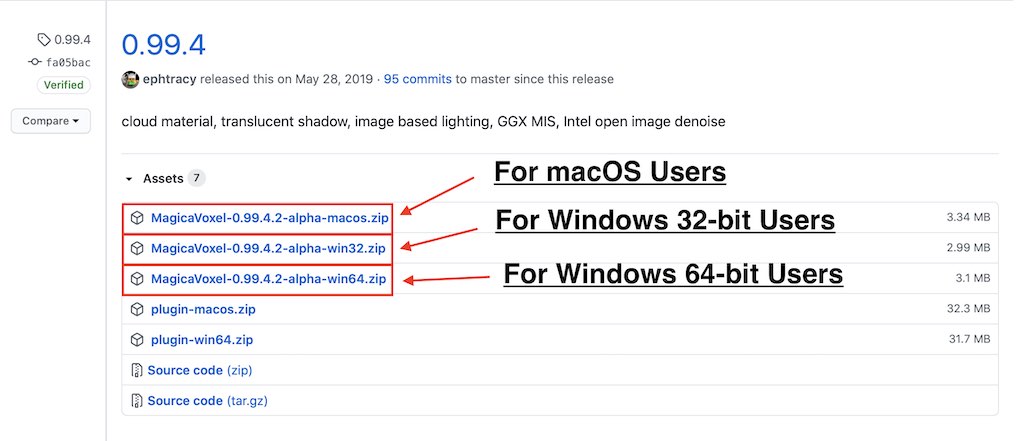
For macOS users select the first option that ends with “macos.zip” file name. This is for any Macintosh computer. For Windows users you have the option to download a 32 or 64 bit version, which are the second and third links respectively. Those are the links that end with “win32.zip” and “win64.zip“. Go ahead and click on whichever one matches your machine. The download is relatively small so it shouldn’t take too long.
Once it downloads, go ahead and unzip the folder. For Windows users simply double click the MagicaVoxel.exe file located inside of the folder. For macOS users you will have to follow some additional steps that we mention below to get it working.
IMPORTANT Note for macOS Users
If you are installing this on an Apple computer running macOS there is one additional step you have to take to open MagicaVoxel. When you download MagicaVoxel you will see the MagicaVoxel.app file located inside of the Zip file:
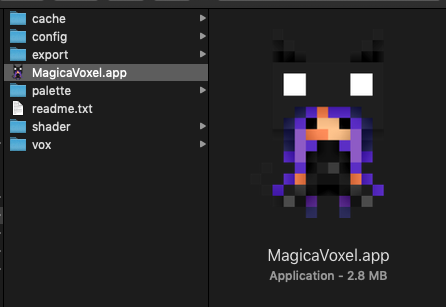
When you double click on the app you’ll notice that it doesn’t open. This is because macOS has blocked the app from running. Since this app came from the internet macOS assumes it isn’t safe and automatically cancels opening the app. To fix this simply open up the System Preferences on your Mac:
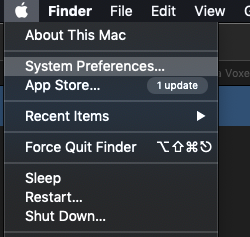
Once in there go ahead and click on the icon that says “Security & Privacy“. This will take you to the menu that helps manage security on your Mac:
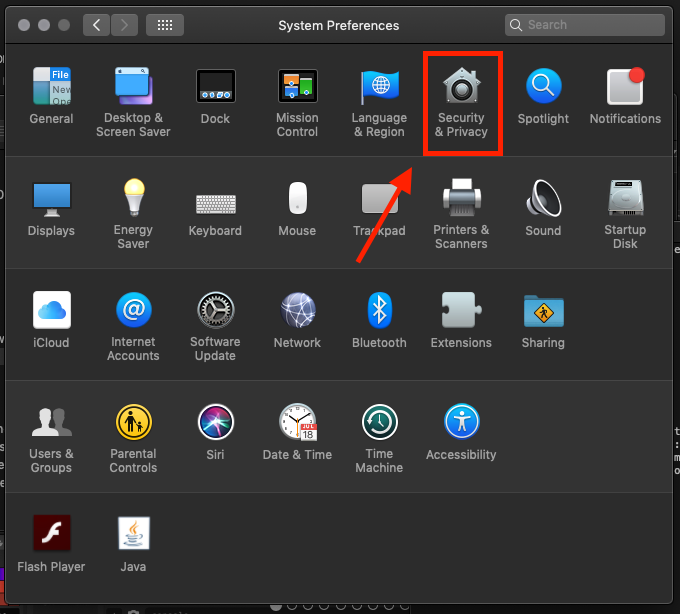
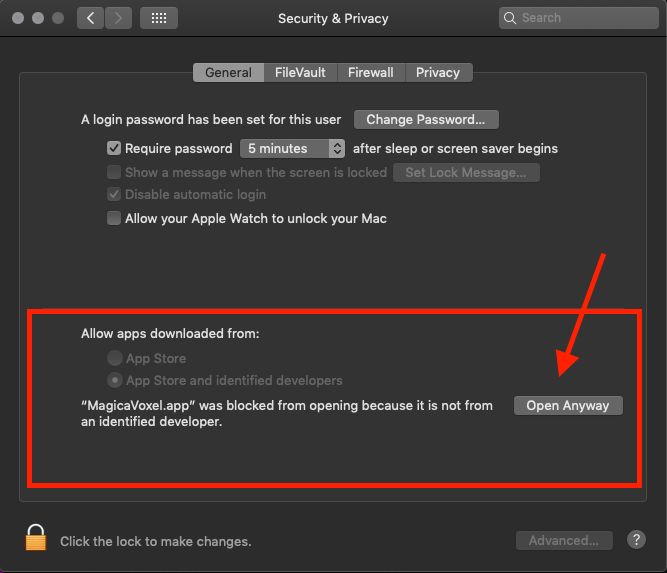
Now that you clicked that you should see a screen titled “Security and Privacy“. On the bottom half of the screen there should be an area titled “Allow apps downloaded from:“. This controls whether an app is allowed to run or not depending on where it came from. Most Macs by default do not allow apps installed outside of the Mac App Store. Since MagicaVoxel is open source it’s included in that category and therefore does not run. To fix this simply click the “Open Anyway” button as seen below. This will allow MagicaVoxel to run on your machine.
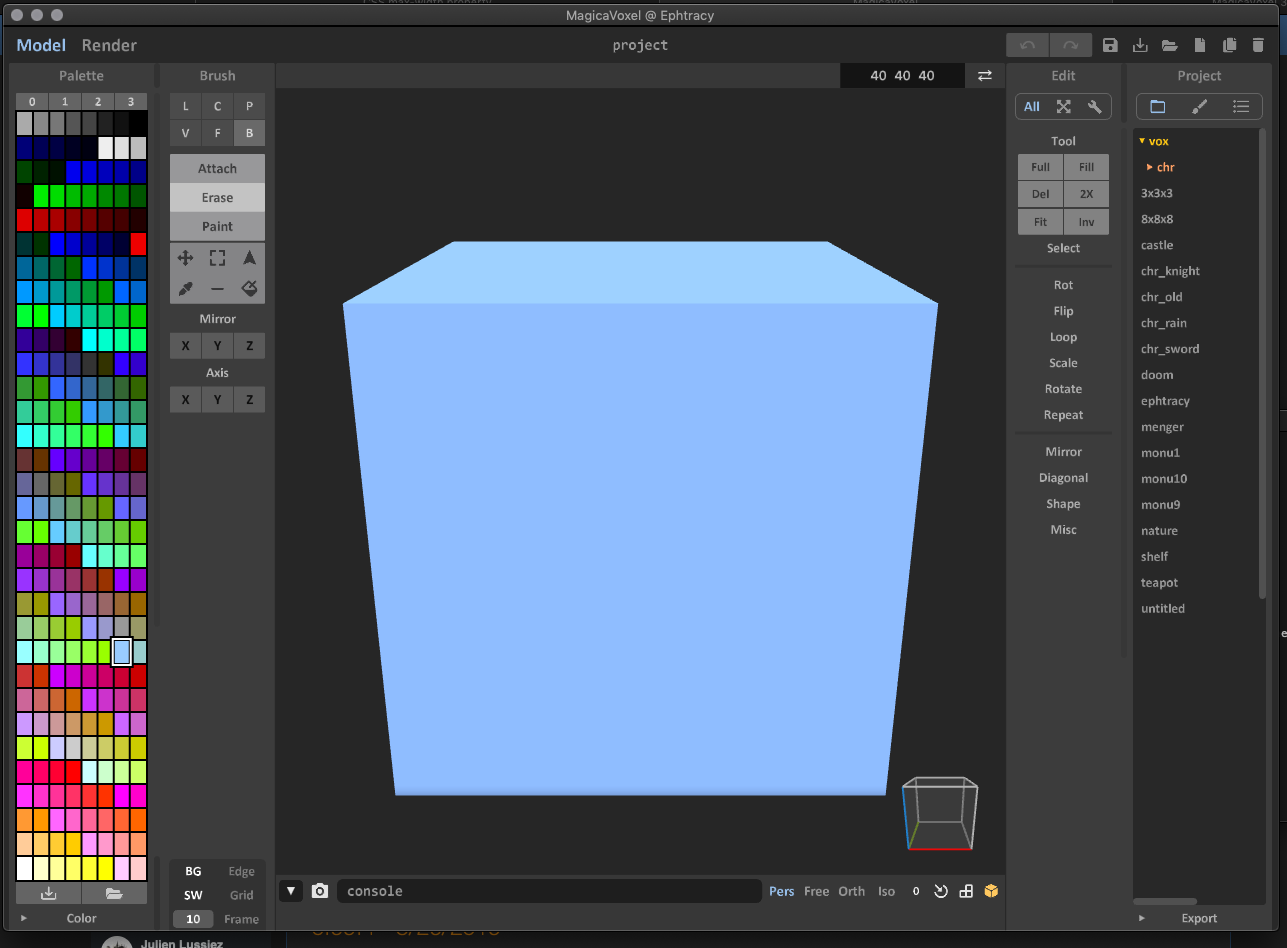
And there you go! MagicaVoxel should work like a charm!
MagicaVoxel Blank Screen on macOS
Some users have reported that when they open MagicaVoxel on macOS for the first time, they see a blank screen.
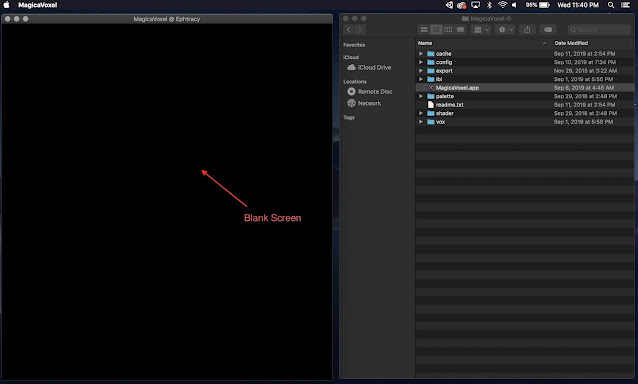
To fix this problem simply drag the MagicaVoxel.app file outside of the folder that it came in. Then drag it back into the folder again. Now when you open it MagicaVoxel should launch normally.
We created a video version of this tutorial on Youtube if you would like to watch the full process.