In this fast pixel art tutorial you will learn how to draw a pixel art rose! We will go over the simple steps it takes to make your very own rose pixel art in no time!


Are you ready to draw your own pixel art rose? Learning how to design a cute pixel art rose is more popular than ever! Whether you’re looking to create a simple pixel art rose sprite for your mobile nature game or maybe you just want to share a cute new pixel art rose as part of your flower collection on social media, this pixel art tutorial will help you make a pixel rose fast and easy.
How to Make a Pixel Art Rose
These are the basic steps for how to make a pixel art rose:
- Select a Pixel Art Software such as Adobe Photoshop or Mega Voxels
- Create a 32×32 pixel grid
- Sketch out an Outline for the shape of the rose
- Fill in the color of the pixel art rose
- Draw a Shade on the rose to create depth
- Fill in the Background with Color
Now that you are familiar with the basic steps on how to create a pixel art rose, we will cover each step visually so that you can follow along on how to create it.
If you are completely new to pixel art we recommend reading our post How to Create Pixel Art: Beginner’s Tutorial
Select a Pixel Art Software
In this beginner tutorial we will be showing you the steps to design your own pixel art rose using a pixel editor software. Before we begin you will need to know how to create a grid and use the pencil tool in Mega Voxels. Once you create your pixel art rose, you can use the pixel art in other games such as Minecraft or software such as the Unity Game Engine. In this tutorial we will be using the Mega Voxels Pixel Editor. We offer tutorials on how to use the Mega Voxels Pixel Art editor below:
Want to see what pixel art software is best for you? Read our post Top Free Pixel Art Software
Create a Grid
To begin we will be using a simple 32×32 pixel grid to draw a small pixel art rose. Making 32×32 pixel art is a common size when making pixel art, especially for projects like video games. Be sure that your canvas is set to the color White (#FFFFFF). This will be our canvas that we use to draw our pixel art rose on. Your rose pixel art grid should have a canvas, also known as a spreadsheet, that looks something similar to this:

Sketch an Outline for the Rose
Next we will start by making the outline for the rose so we can get the overall shape for our pixel rose. To do this choose the color Black (#000000) and activate the pencil tool in your editor. Since this determines the overall shape, feel free to adjust the outline to what match your game or art project. As a guide, you can use the outline we made below for your rose or like we mentioned before feel free to design your own.

Fill in the Color
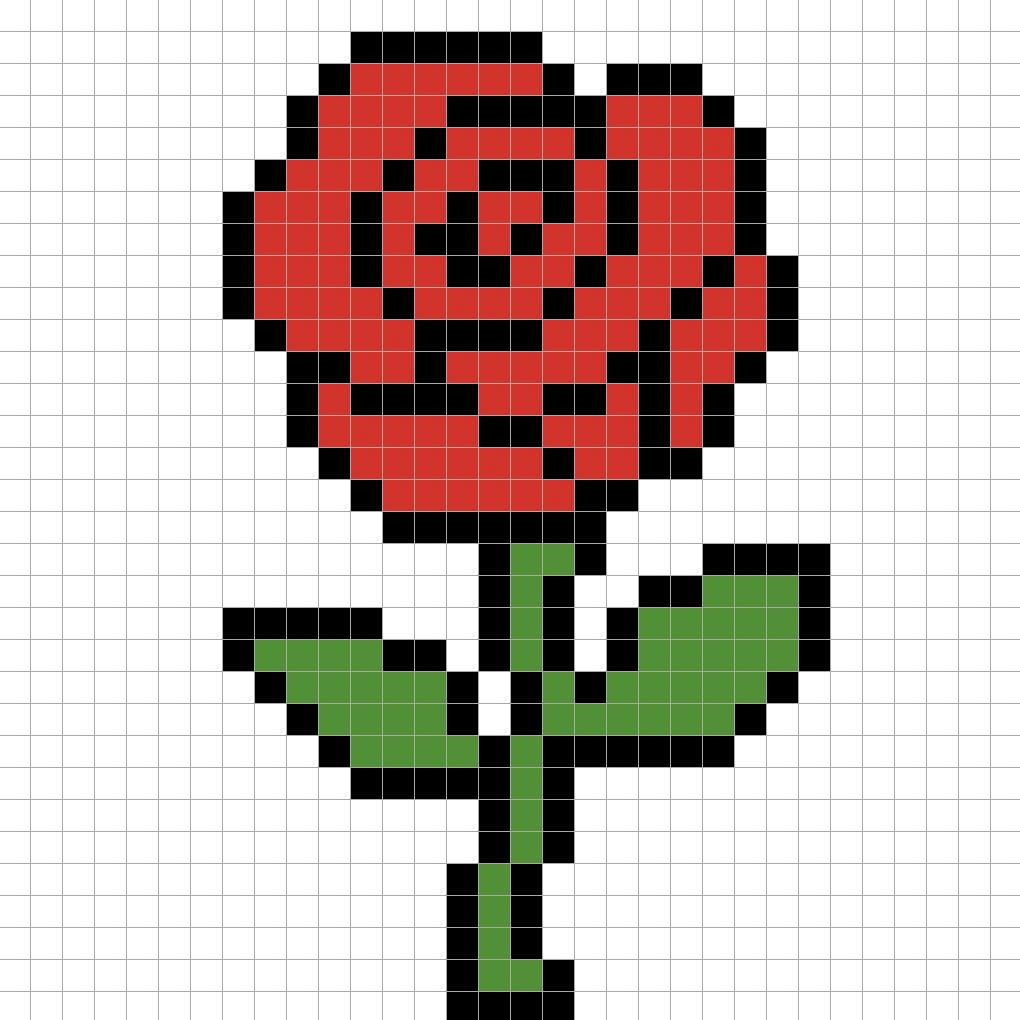
Now that you made an outline for your pixel art rose, we will add some color to make it stand out. Fill in the main section of the rose brown (#AE6521). Next for the leaves of the rose, we will use a green color (#4ECD3E). Try matching the picture of our 8 bit pixel art rose below.
Draw the Shading
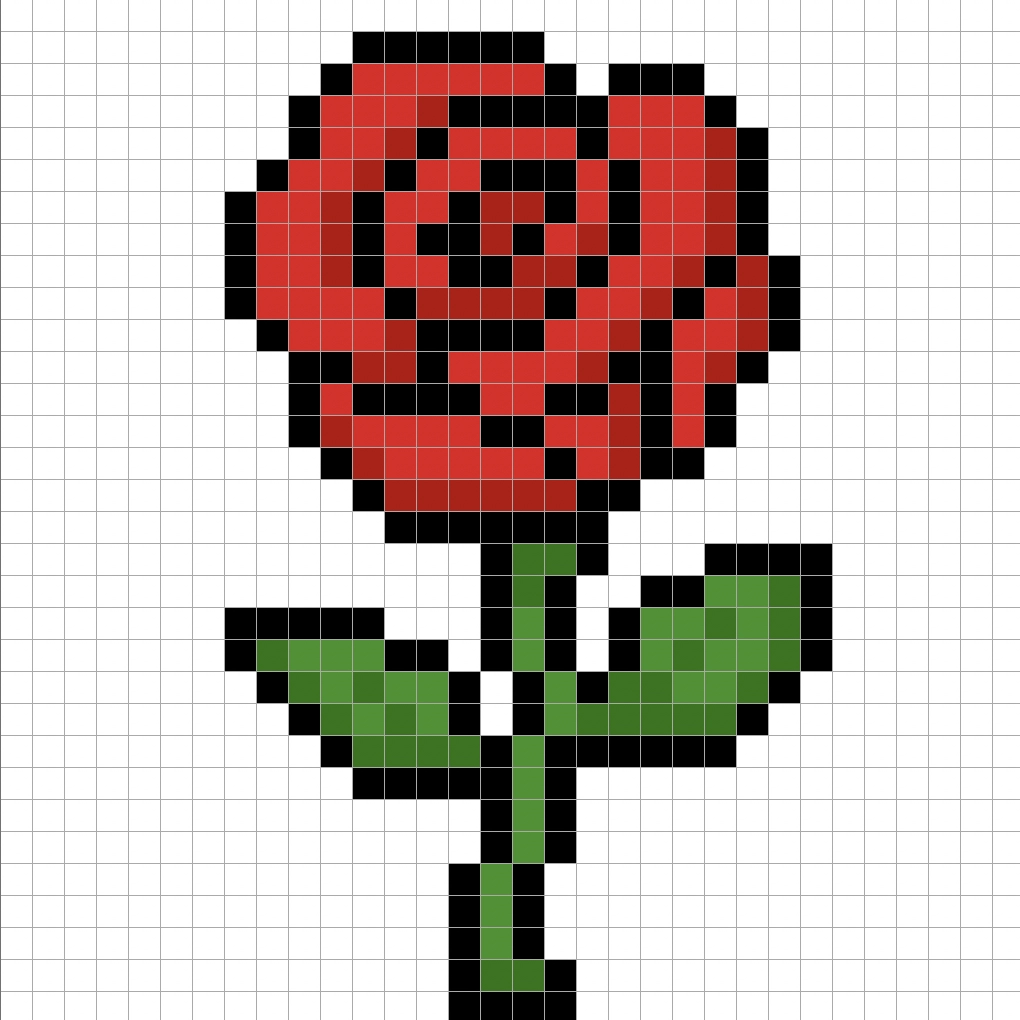
So whenever you create pixel art there are essentially two parts to shading: the highlights and the shadows. We will start with the shadows. We will be applying a shadow to our 32×32 pixel art rose using a single color. This color will be applied to the rose trunk and the bottom of the leaves on the rose. Remember, to create a shadow color for the rose we will use a darker brown based on the color we used before (#87481E). We will also add a darker green (#27B015) to the leaves. Try to match where we put the shadows in the image below.
So now that you got the basic idea we will continue adding some depth to our rose to give it a 3D feel. Let’s create a highlight using the same brown from the main rose section, but instead of going darker this time we will go lighter (#CA7A39). Remember, this doesn’t have to be the exact color in fact this is an opportunity to make the rose look like your own. In our version we highlighted the top of the rose trunk, and the rose leaves. Use our image as a guide for your rose.
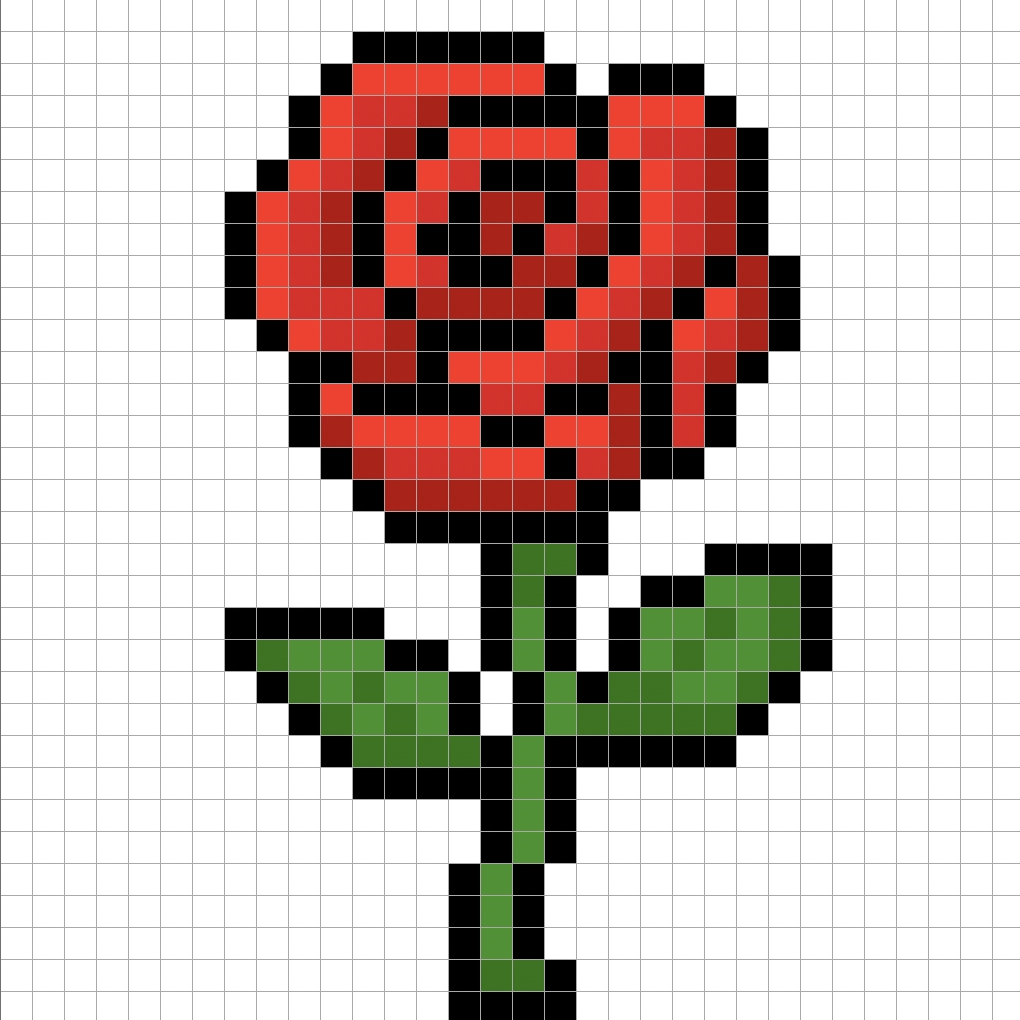
Great! When you are happy with your shadows and highlights on your rose, be sure to view your final image. To see your pixel art rose go ahead and turn off the grid lines to make sure you like the way the rose came out.

Fill the Background Color
Finally, let’s change the background color of our rose sprite to really make our rose stand out nicely. Select the Bucket fill tool in your editor. For the color enter a very Light Blue (#BCEAFE). Then simply click on the white area outside of the pixel rose.

Where to Go From Here
Congratulations! You now know how to create your very own pixel art rose. Try making a different types of flowers such as a daisy or even an sunflower.
Bonus: Make a 3D Pixel Art Rose

Now that you have drawn your own pixel art rose, you can turn it 3D with Mega Voxels. Mega Voxels contains a 3D Pixel Art Maker that allows you to convert traditional 2D pixels into 3D pixels. Simply download the free Mega Voxels app for iOS or Android.


Then import the pixel art you just made using the Add File button inside of the My Gallery page. And that’s it! Mega Voxels automatically transforms you pixel art rose into a 3D pixel art rose.
You can now create 3D turntable videos of your 3D pixel art rose and even view your rose in Augmented Reality!