Want to make your pixel art bigger or smaller in Mega Voxels? Whether you’re designing sprites for a game or adjusting proportions for a scene, Mega Voxels makes resizing super simple with its built-in Scale Tool. In this tutorial, you’ll learn how to resize pixel art using the Pixel Editor inside Mega Voxels.
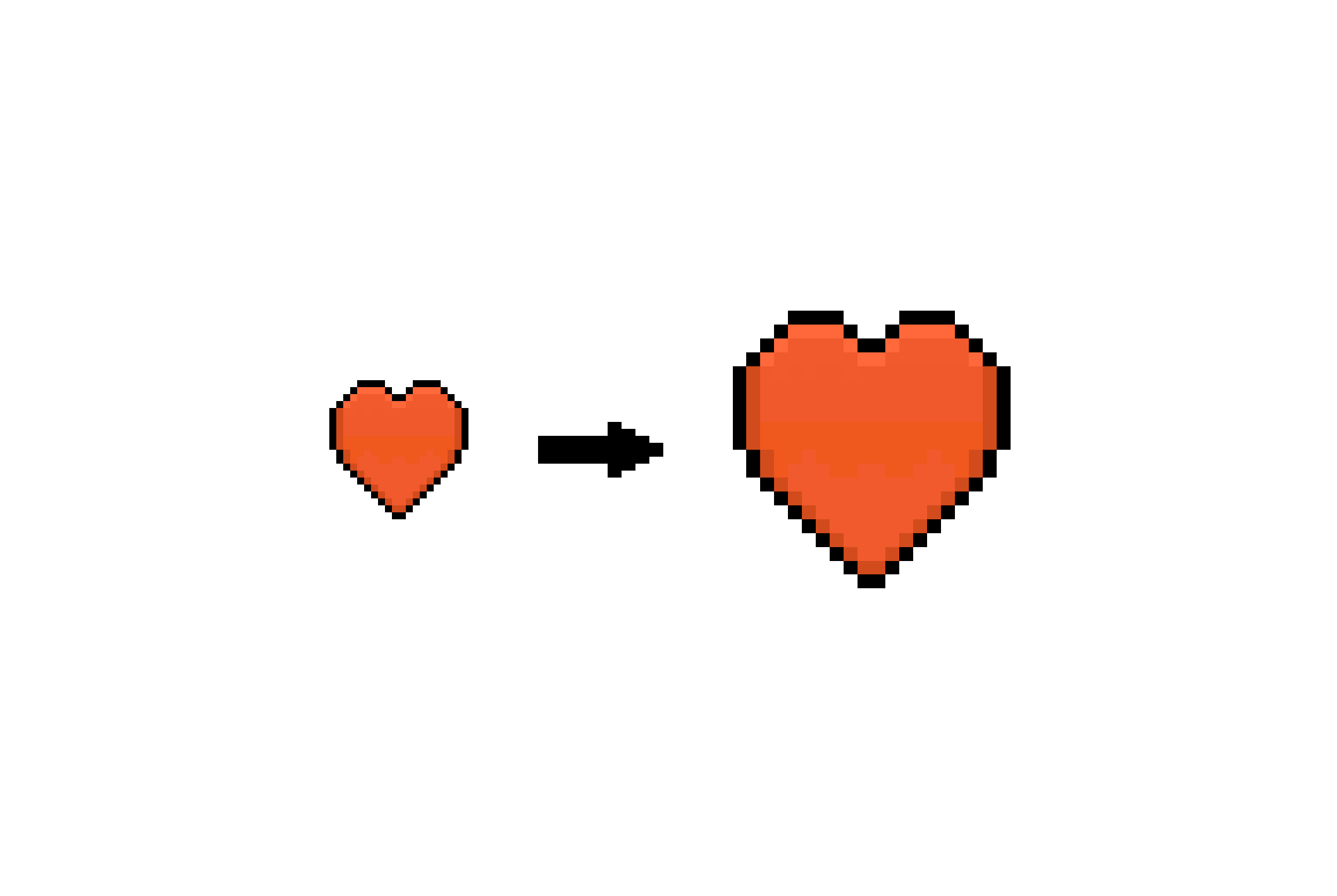
What is Resizing in Mega Voxels?
Resizing pixel art means changing how large or small your artwork appears on the canvas. This is especially useful when:
- You want to shrink art for icons or thumbnails
- You need to scale up for animations or game scenes
- You’re adjusting proportions to match other assets
Mega Voxels offers a quick way to scale your pixel art using preset values like 0.5x (half size) or 2x (double size).
How to Access Your Pixel Art File
Before you can resize your pixel art, you’ll need to open it in the Pixel Editor:
Step 1: Go to the My Art Tab
Launch Mega Voxels and tap the My Art tab at the bottom of the screen. This is where all your saved projects live.
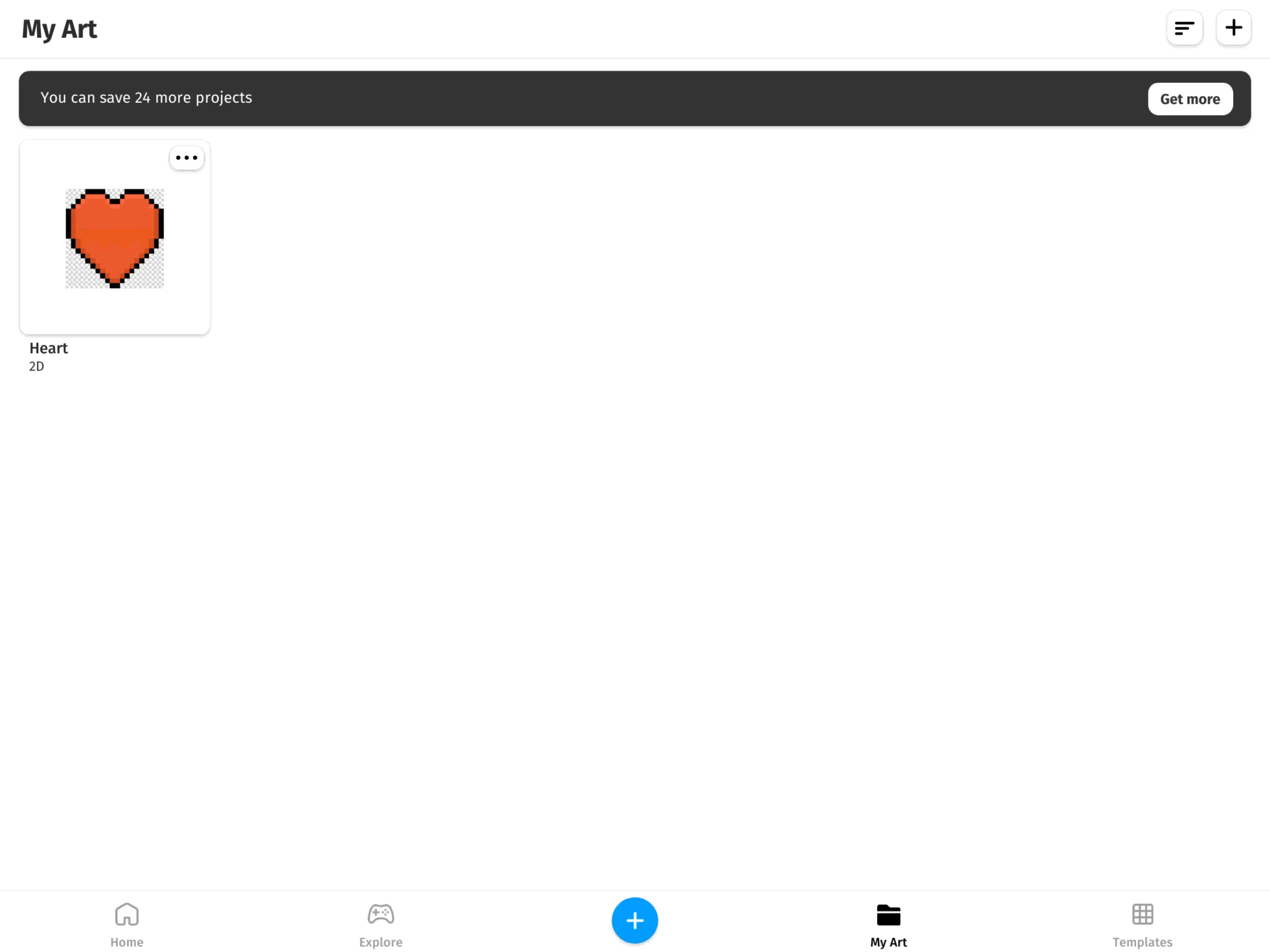
Step 2: Open a 2D File
Find the 2D pixel art file you want to resize and tap on it. This will open the file in the Pixel Editor, where you can make changes.
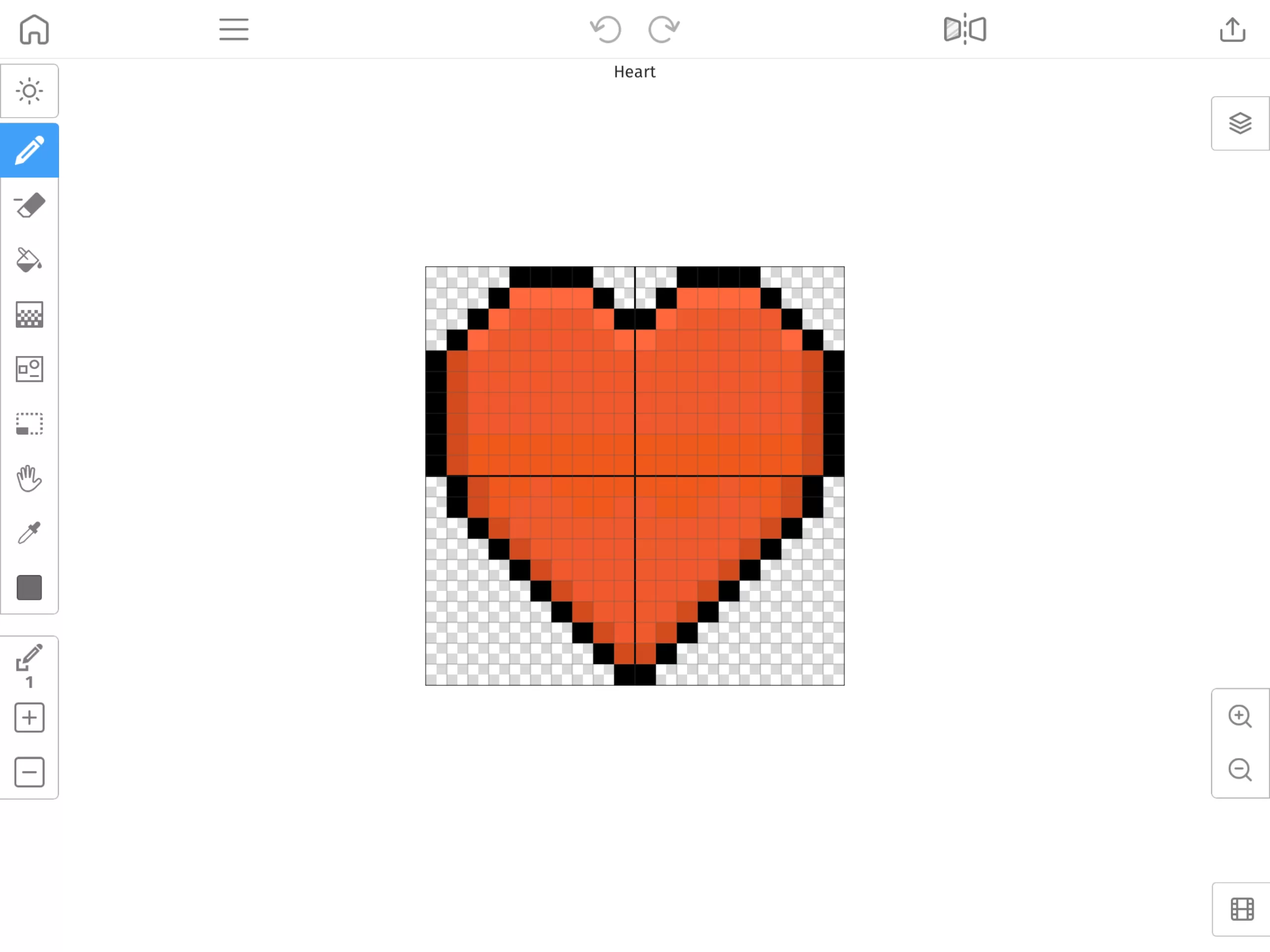
How to Resize Pixel Art in Mega Voxels
Once your file is open, follow these steps to resize it:
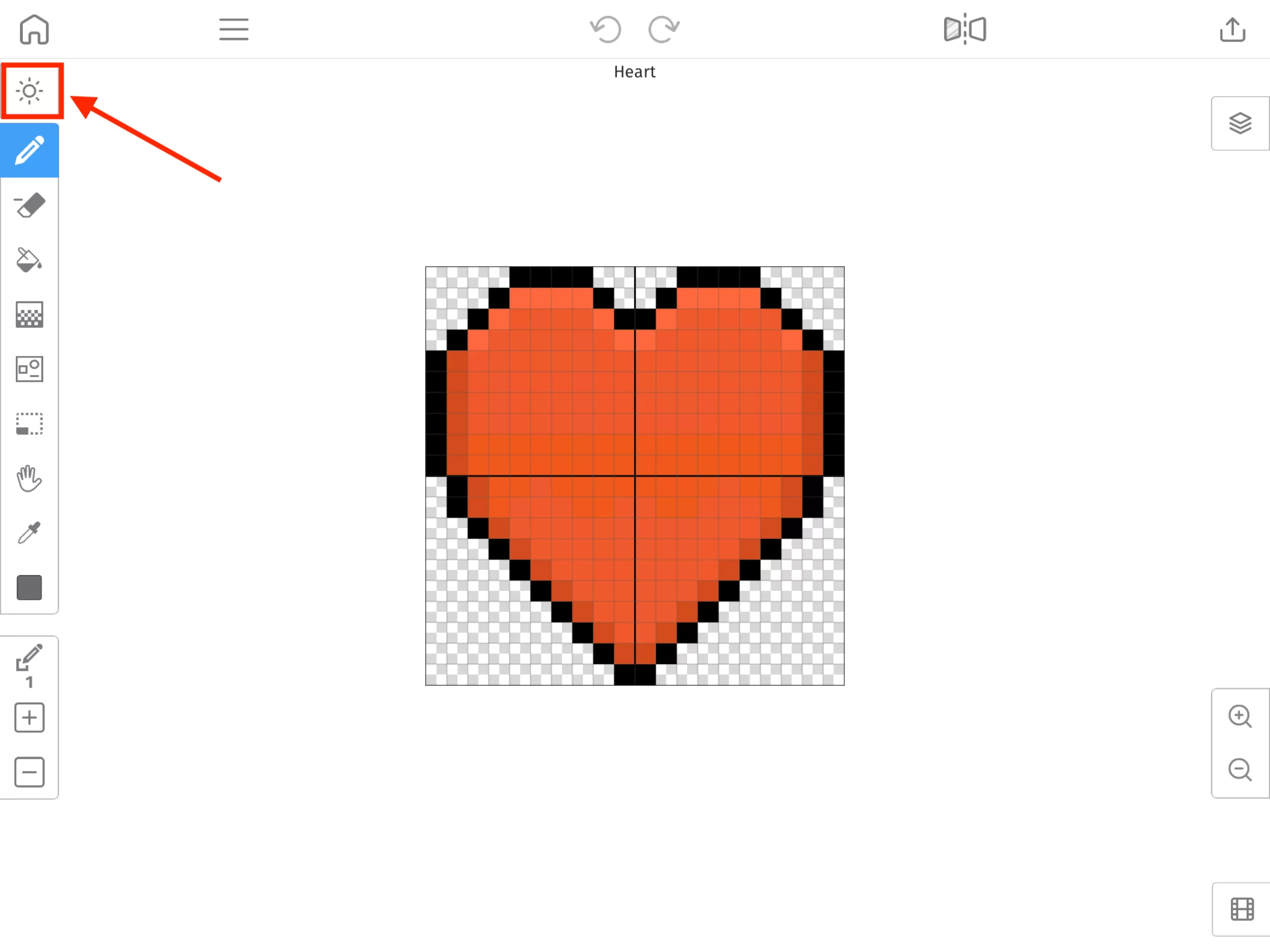
Step 1: Tap the Scene Settings Button
Inside the Pixel Editor, tap the Scene Settings button (gear icon) to open the settings panel.
Step 2: Tap the Scale Button
In the settings panel, tap the Scale button. This opens the scaling options.
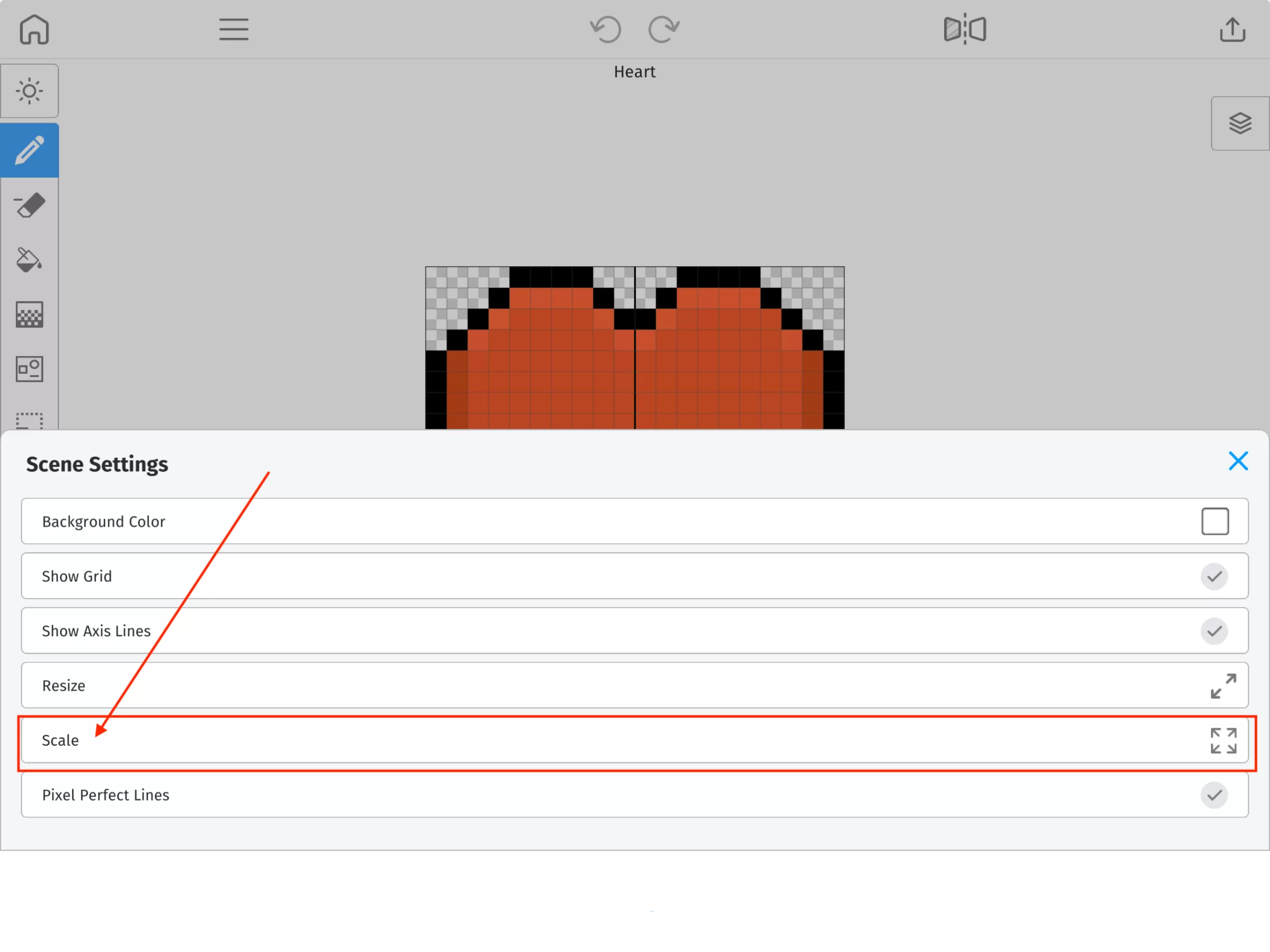
Step 3: Choose a Scale Value
Once you tap the Scale button, you’ll see two options for resizing your pixel art. These options let you either shrink or enlarge your artwork depending on your needs.
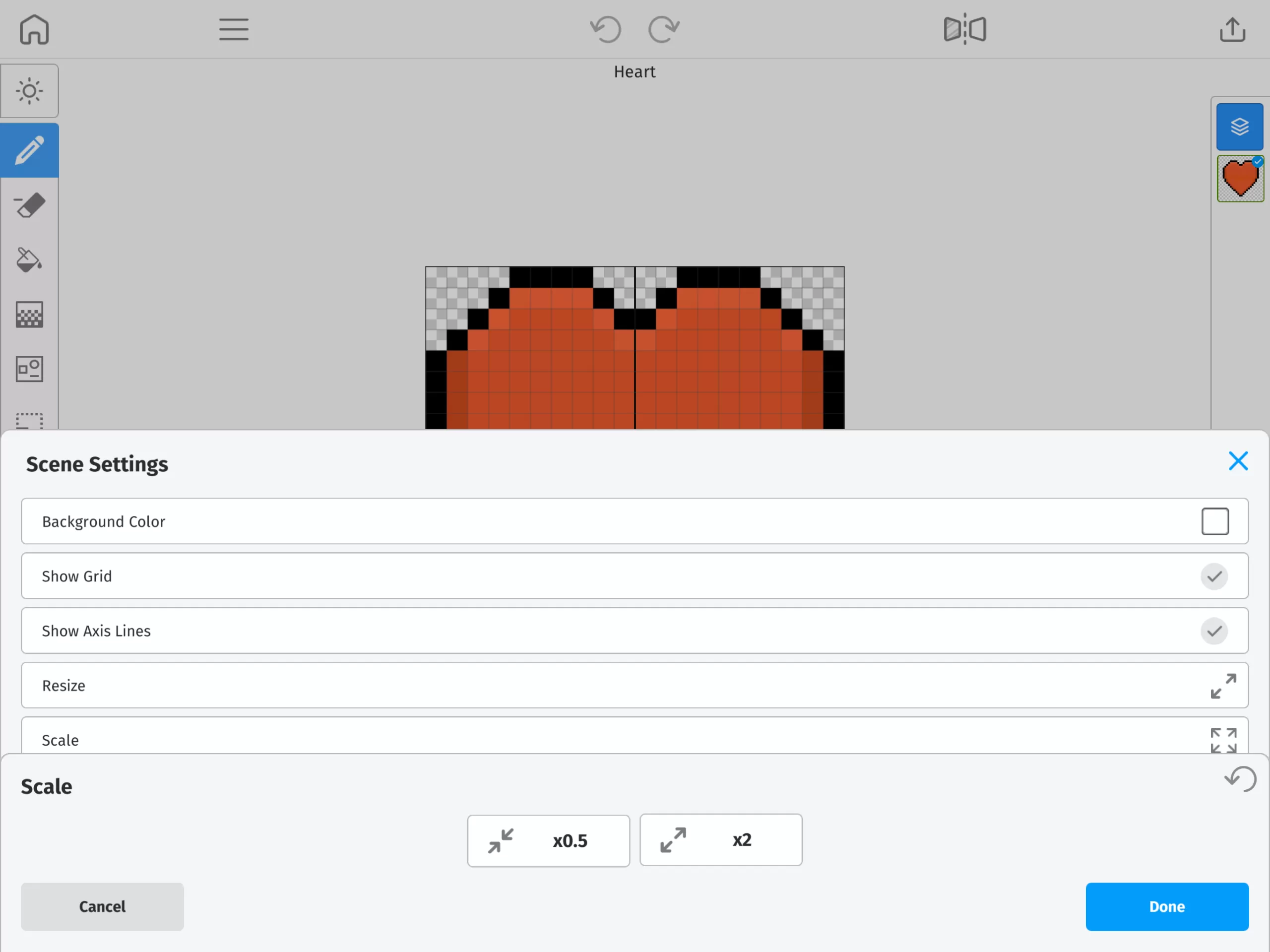
Option 1: Scale Down to 0.5x
This option reduces your pixel art to half its original size. It’s perfect for creating smaller assets like icons or thumbnails.
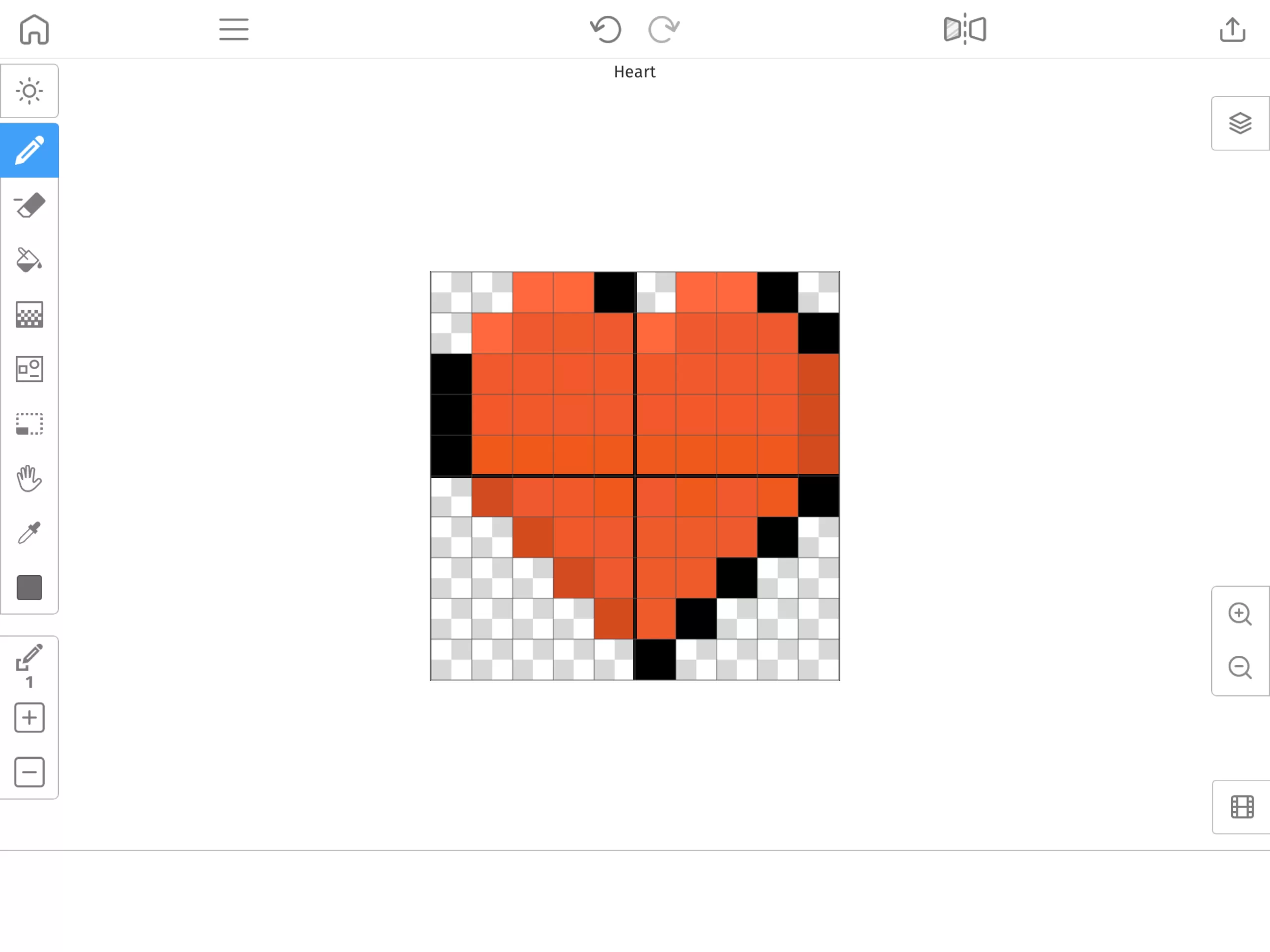
Option 2: Scale Up to 2x
This option doubles the size of your pixel art. Use this when you want to make your artwork more prominent or prepare it for larger displays.
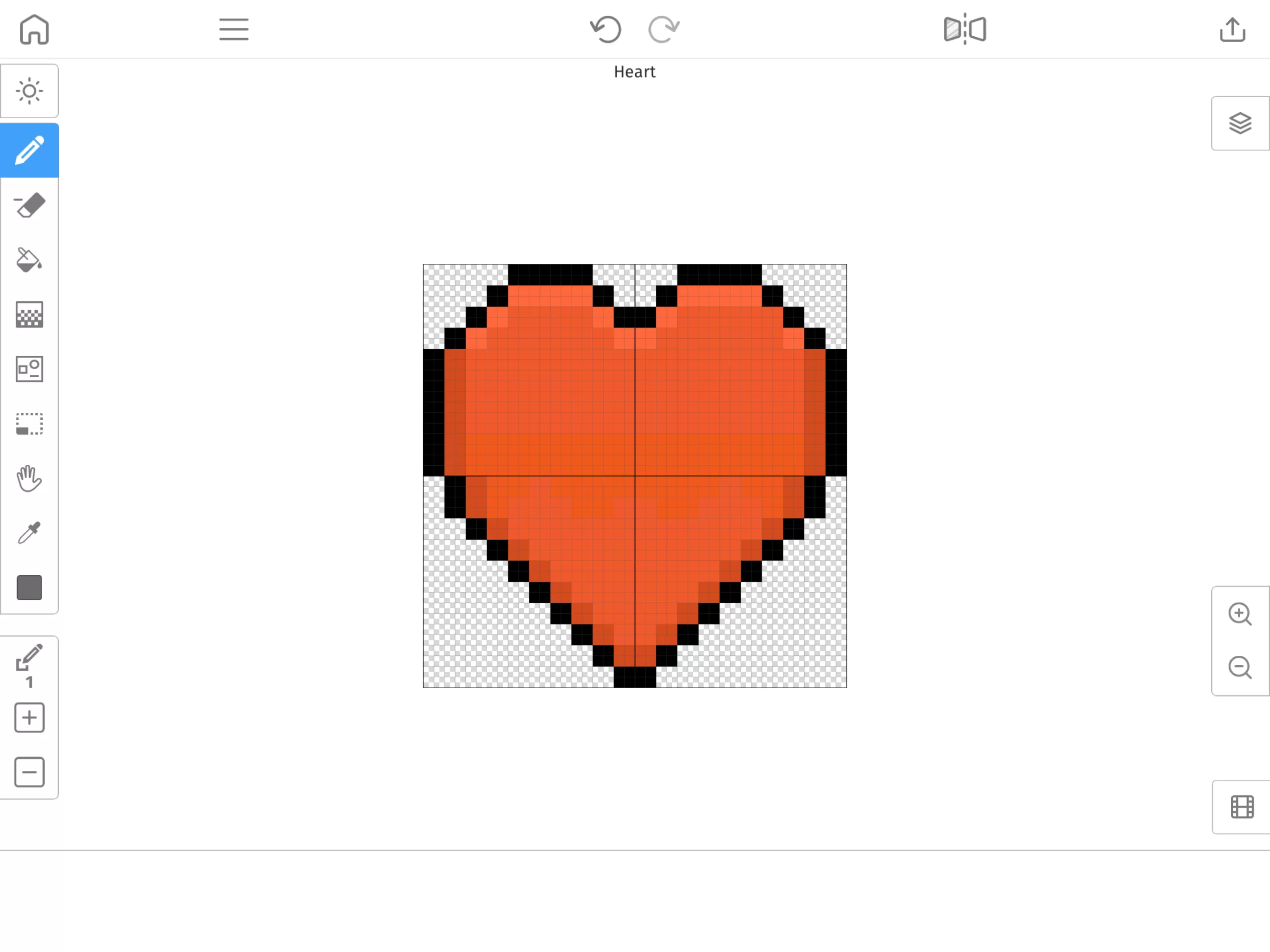
Your artwork will instantly resize on the canvas.
Tips for Resizing Pixel Art
- Preview before committing: Try different scale values to see what works best for your project.
- Scaling down may reduce detail: If your art has intricate features, shrinking it might make them harder to see.
- Use Undo if needed: Not happy with the result? Tap Undo to revert to the previous size.
Final Thoughts
Resizing pixel art in Mega Voxels is quick and intuitive thanks to the built-in Scale Tool. Whether you’re prepping assets for a game or just experimenting with proportions, this feature gives you the flexibility to adjust your artwork with ease.
Want more tips on pixel art and voxel design? Explore our other tutorials and keep creating!