
Building Tools
The Building Tools in Mega Voxels are designed to supercharge your creative process, giving you everything you need to construct detailed voxel models and environments with speed and precision. Whether you’re designing a sprawling voxel city, a fantasy landscape, or a character with intricate accessories, these tools provide the structure and flexibility to bring your vision to life. With intuitive controls and powerful automation features, the Building Tools make it easy to go from concept to completion—no matter your skill level.
Add, Remove, and Paint Voxels
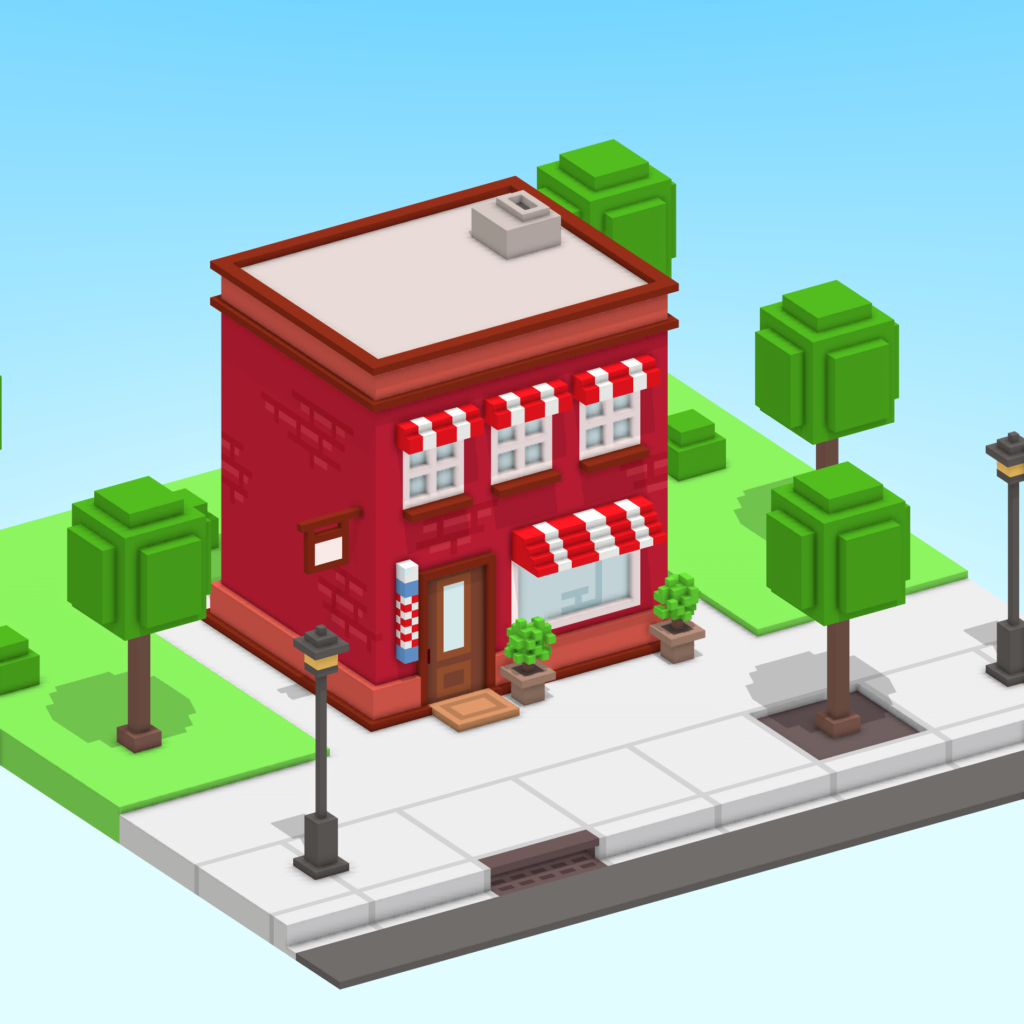
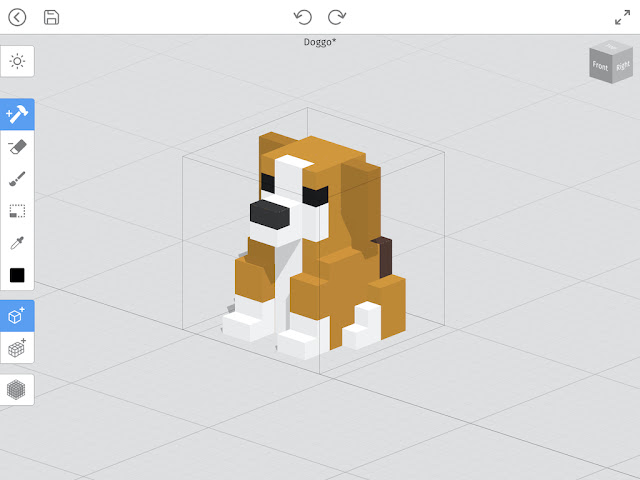
At the heart of the Building Tools are the core functions: adding, removing, and painting voxels. These actions form the foundation of any voxel-based creation. The add tool lets you place cubes one by one or in bulk, allowing for both detailed sculpting and rapid prototyping. Whether you’re building a castle wall or a robot arm, placing voxels is smooth and responsive.
The remove tool is equally powerful, giving you the ability to carve out shapes, hollow interiors, or clean up mistakes with ease. You can erase individual voxels or entire sections, making it simple to refine your model as you go. Combined with the undo/redo history, this tool ensures that experimentation is safe and reversible.
Painting adds color and style. Use custom palettes, gradients, and symmetry to apply colors fast. You can paint individual voxels or large areas with precision.
Shape and Fill Tools
Mega Voxels includes a suite of shape tools that allow you to build geometric forms instantly. With options like cube, sphere, cylinder, and pyramid, you can generate complex structures without manually placing each voxel. These shapes can be resized, rotated, and positioned precisely, making them ideal for architectural elements, terrain features, or stylized props.
The fill tool complements the shape tools by letting you quickly populate areas with voxels. Whether you’re laying down a floor, filling in a wall, or creating a solid base for your model, the fill tool saves time and ensures consistency. You can even use it to apply color across large regions, streamlining the painting process.
Together, these tools save time and reduce repetitive work. They’re especially useful for large scenes or game environments.
Grid and Snapping Control
Precision is key when building voxel models, and Mega Voxels delivers with robust grid and snapping controls. The editor features a customizable grid that helps you align voxels perfectly, whether you’re working on a symmetrical character or a modular environment. You can adjust the grid size to suit your project, from fine detail work to large-scale construction.
Snapping ensures that every voxel lands exactly where it should. You can snap to the grid, to other voxels, or to specific axes, making it easy to maintain alignment and structure. This is especially helpful when creating mechanical objects, tiled terrain, or anything that requires clean, repeatable geometry.
These controls improve consistency and make collaboration easier. Everything fits together cleanly and reliably.

Symmetry and Mirroring
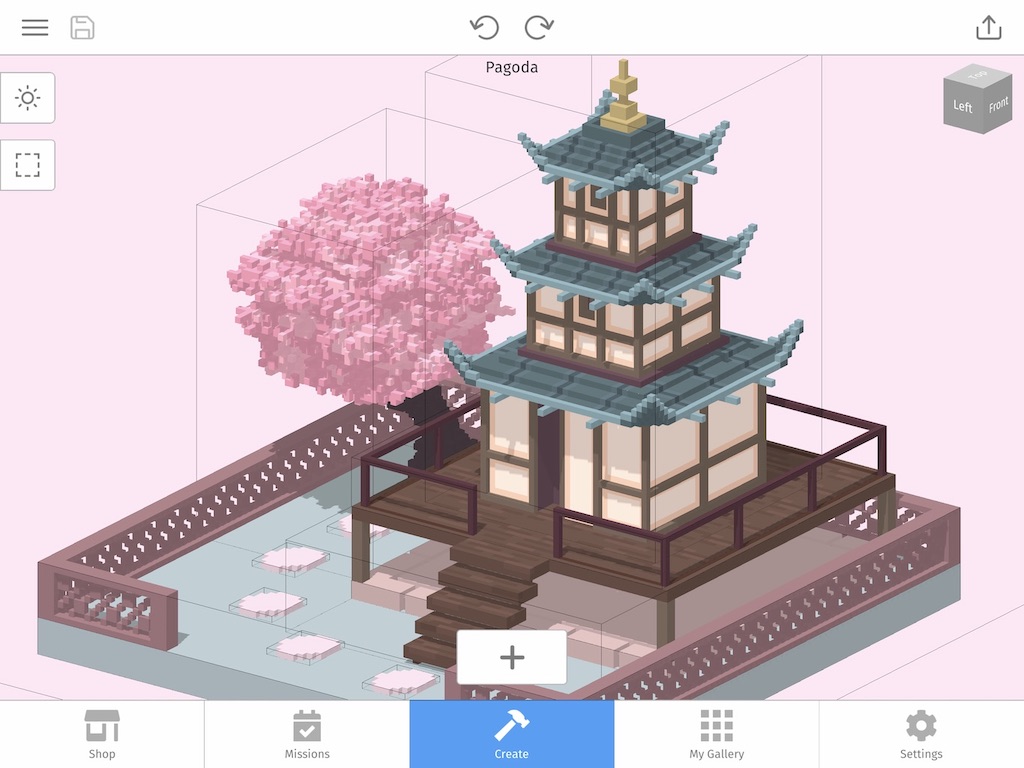
Symmetry tools are a favorite among voxel artists, and Mega Voxels offers powerful options for mirroring your work across axes. You can enable symmetry on the X, Y, or Z axis—or all three at once—to automatically duplicate your edits in real time. This is perfect for creating balanced characters, vehicles, or decorative patterns.
Mirroring not only speeds up the building process but also reduces errors. Instead of manually copying details from one side to another, you can focus on one half and let the editor handle the rest. This is especially useful for organic shapes like faces, creatures, or symmetrical architecture.
Advanced settings let you control how symmetry behaves. You can offset or limit mirroring for more complex designs.
How to Use the Building Tools (3 Simple Steps)
Building tool Features
| Add voxels individually or in bulk | Remove voxels with precision |
| Paint with custom palettes and gradients | Shape tools: cube, sphere, cylinder, pyramid |
| Fill tool for fast coverage | Grid and snapping for alignment |
| Symmetry across axes | Undo/redo for safe edits |