Pixel Art Color by Number for Creative Beginners
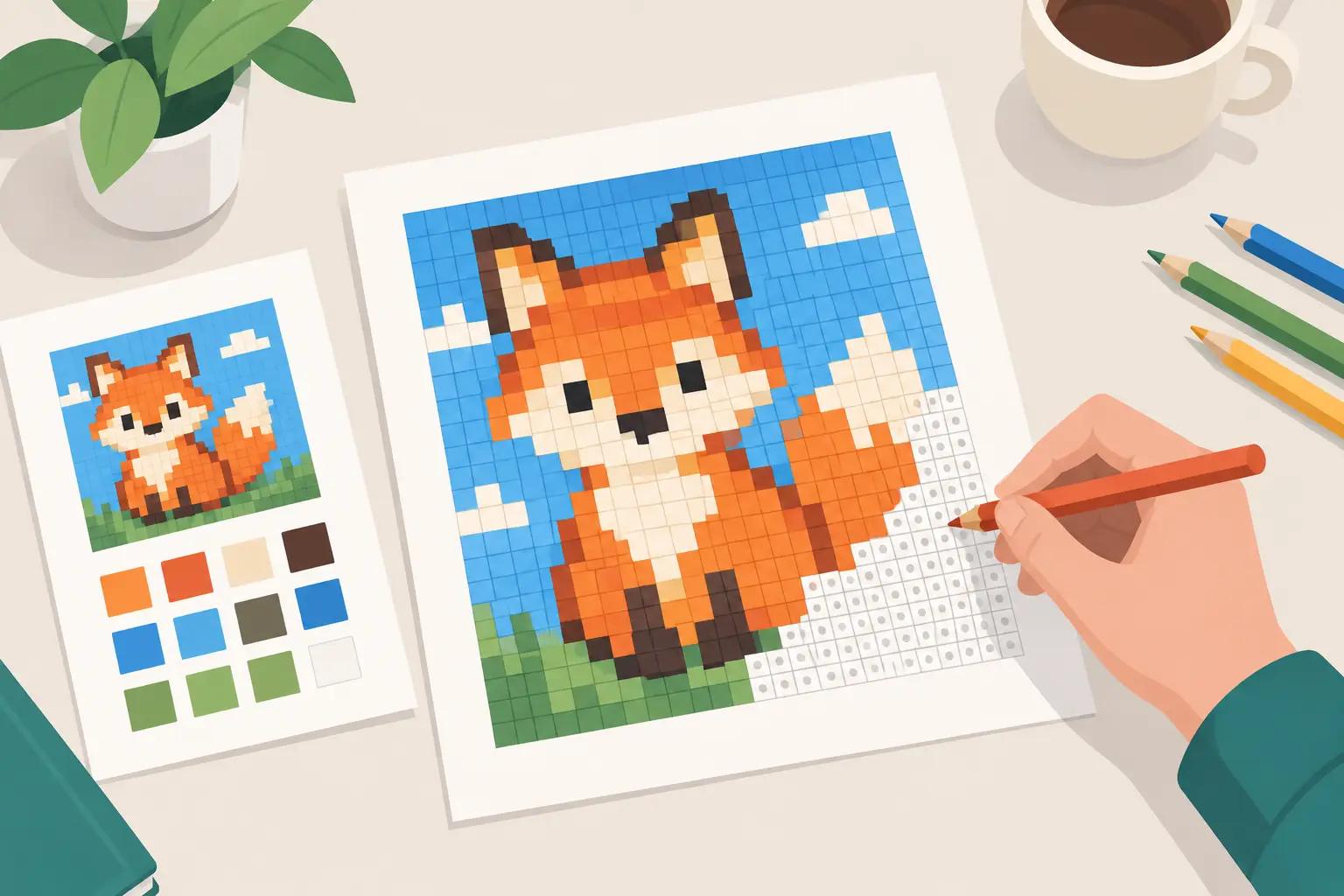
Try pixel art color by number to build shading skills, finish satisfying designs, and move from guided grids to original pixel art on your phone with ease.

Mega Voxels has an awesome tool named the Distribute tool that makes it incredibly simple to distribute several voxel models evenly so that the spacing between them is uniform. That way you don’t have to space each model individually. In this tutorial, we will show you how to use the distribute tool to space several models.

Distribution is a method used by artists and creators to evenly space several models in a scene so that they have a uniform amount of spacing between them. Similar to the Align tool, you could do this manually, however the Distribute tool can save you a lot of time and effort. Lets say for example you might have a group of voxel house models that you would like to have an equal amount of spacing, but they are spaced out randomly and now you’re asking, how do I distribute voxel models in Mega Voxels? Luckily, Mega Voxels allows has a tool that can distribute several models instantly so that you can create evenly space out your models. Well cover the steps on how to distribute your voxel models.
This tutorial supports Mega Voxels 1.7 or newer. If you need help installing Mega Voxels, view our previous tutorial How to Install Mega Voxels. There you can find a step by step tutorial on getting Mega Voxels running on your device.
Before we go over how to use the Distribute tool we’ll cover how distribution works. The distribute tool lets you select multiple models (at least 3) in your scene and position them so that they are uniformly spaced from each other. When using the tool you can select what edge of the models you would like to distribute your models to. This saves a considerable amount of effort and time compared to manually positioning models so that they are spaced evenly from each other.
First let’s open up Mega Voxels. For this example we will use a scene that has 3 of the
“dog” models that you create in the beginner tutorial for Mega Voxels. However feel free to use your own voxel scene or choose some models from the shop if you don’t have any. Basically your scene should have at least 3 models. In our scene we have 3 dog models. As you can see from the image below, they are randomly spaced from each other.

We will now cover how to distribute the three models using the Distribute tool in Mega Voxels.
So to begin, we will cover how to distribute our three voxel models in our scene. The end result will be a single row of evenly spaced voxel models. In other words, there will be an even amount of spacing between each model. To begin tap on the Select tool at the top left of the editor. Then simply tap and drag to draw a selection rectangle over the three voxel models in the scene.

Once you have chosen all three voxel models, a context menu will be displayed at the top of the three models with different options to choose to pick. We will focus on the last option called Distribute. This option gives you the ability to distribute the selected models. Go ahead and press the Distribute button.

After you tap on the Distribute option, a new menu will show up at the bottom of the editor that looks like the one below. Basically every button allows you to distribute your models. The difference is what edge you would like to distribute them by and which axis.

We will demonstrate this tool by distribute the models based on the center of the models along the X axis. The buttons on top represent the X axis and the ones on the bottom represent the Y. Keep in mind that these buttons work in conjunction with the camera view. So it matters what angle you are looking at your models from. Rotate the camera by dragging like below and then press the button on the bottom right.

When you do that your models should now be distributed evenly along the X axis. It should look similar to the picture below.

When your models are distributed press Done. Notice how are models that were spaced unevenly are now spaced perfectly even.

Learning how to distribute voxels models in Mega Voxels can save you tons of time and effort instead of manually distributing them yourself. If you have any questions please ask below. Also if you found this tutorial helpful, please consider sharing.

Try pixel art color by number to build shading skills, finish satisfying designs, and move from guided grids to original pixel art on your phone with ease.
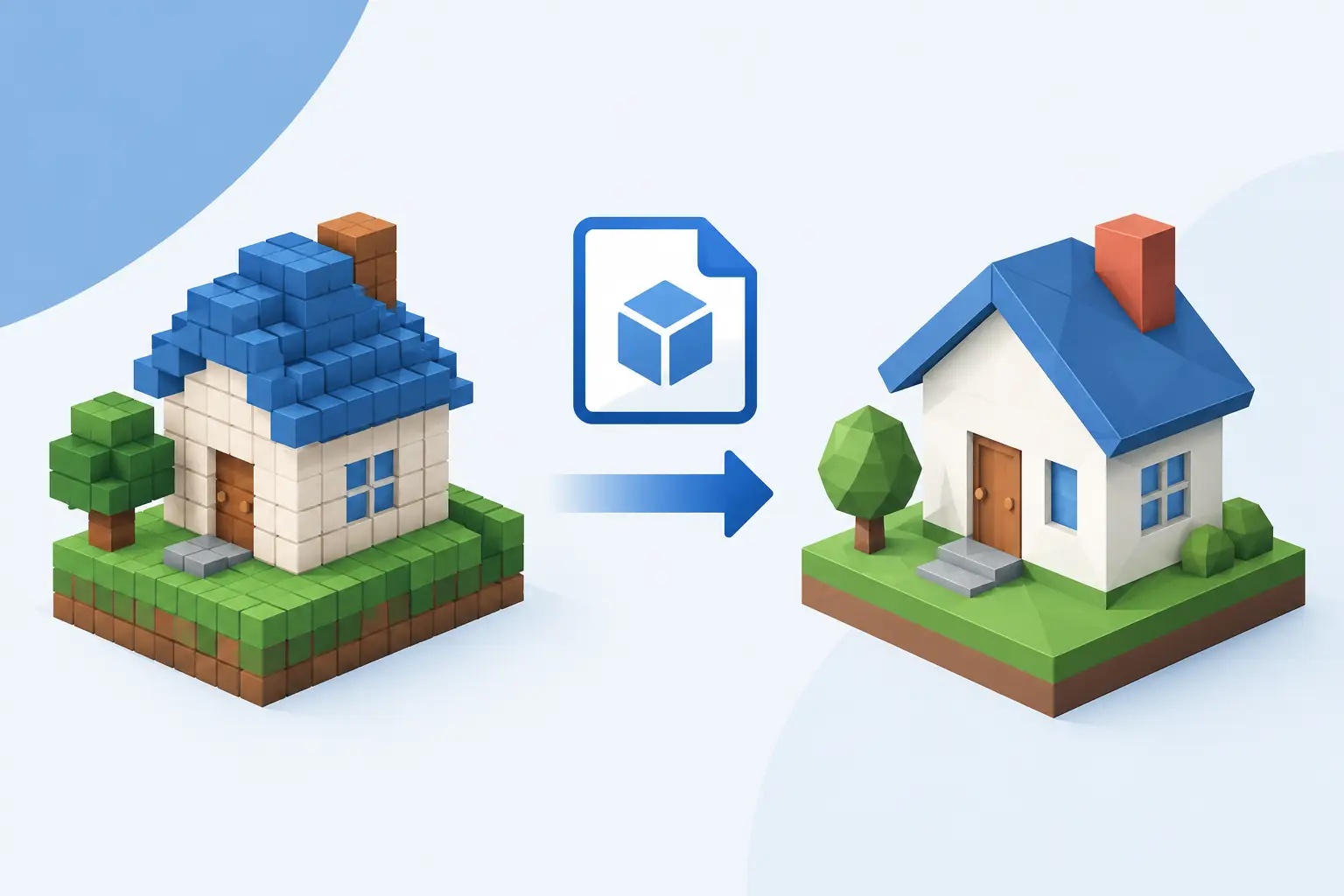
Learn how to export voxel models to OBJ, keep colors and scale under control, and prepare clean 3D pixel art for games, renders, and sharing with ease.
What is a VOX file? Learn how this voxel model format stores 3D pixel art, what opens it, and when to export VOX, OBJ, or PNG files for sharing easily.
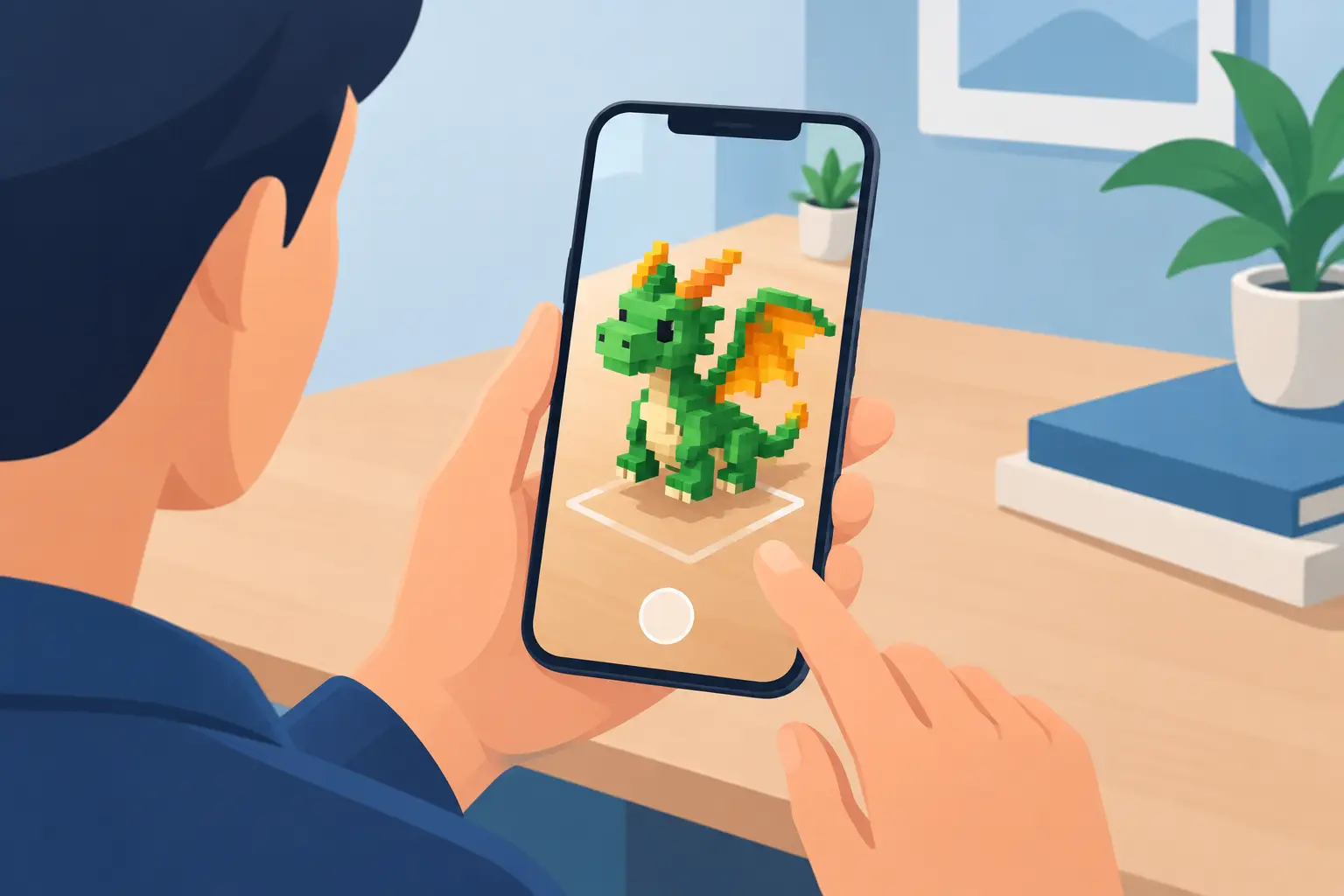
Learn how to view voxel art in AR, place 3D pixel creations in real spaces, adjust scale and light, and capture photos and videos on your phone with ease.
Learn how to build voxel houses with clear shapes, balanced colors, layered roofs, and small details that make every block-built home feel lived in.
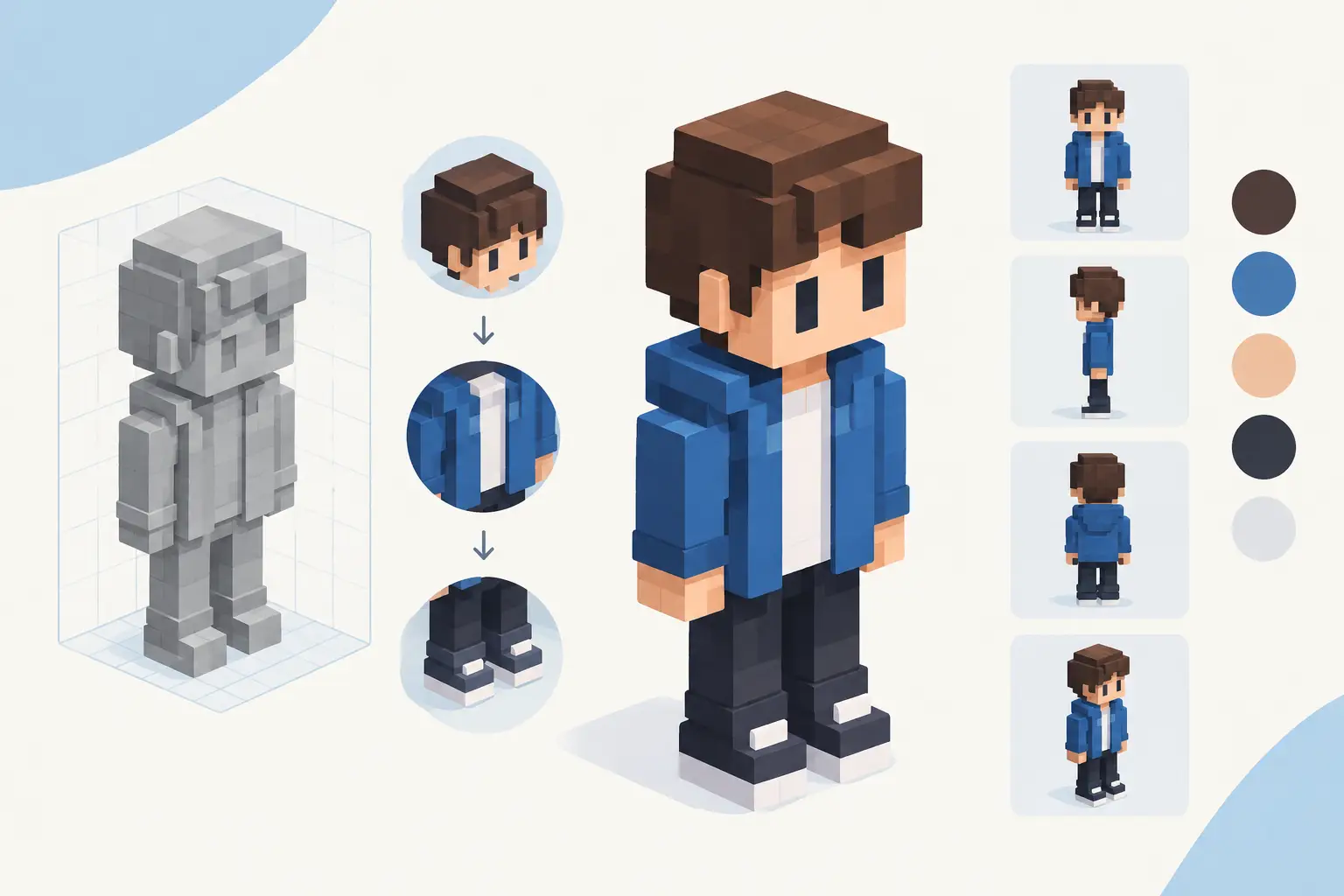
Learn how to create voxel characters with clear shapes, smart color choices, and simple mobile-friendly steps for building expressive 3D pixel art fast.
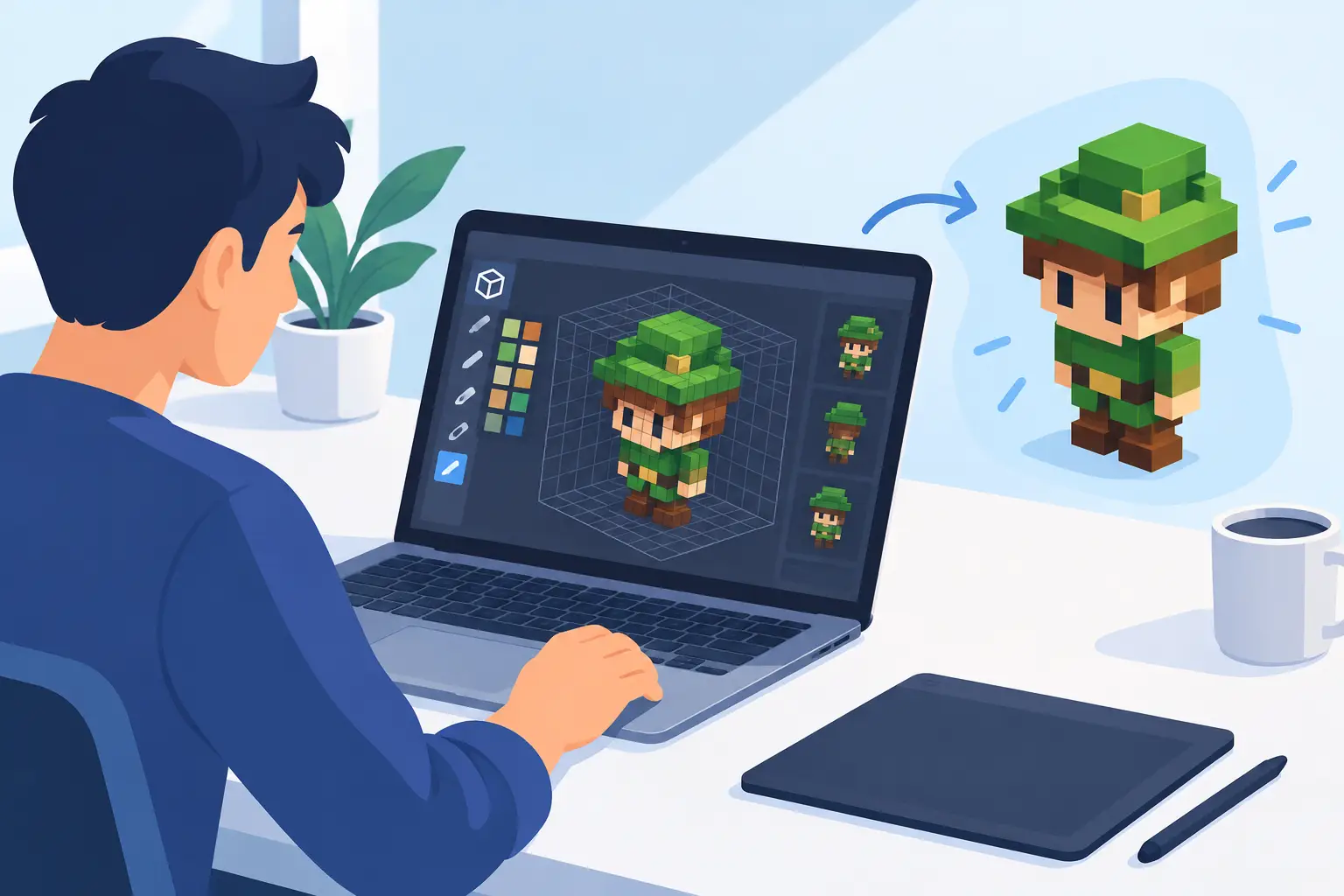
A 3D pixel art maker app lets you build characters, scenes, and game-ready models from simple blocks, then share, export, or view them in AR anywhere.
What are voxels in art? Learn how these 3D pixels shape models, scenes, and game art, plus simple ways to start creating voxel art on your phone today.
What is a voxel editor? Learn how digital blocks become 3D art, how voxel tools work, and how to make, export, and share your first model on your phone.
MagicaVoxel has become one of the most used voxel editors today. Its loaded with features for creating great voxel models [...]